
You may have a need to create division specific eligibility. Meaning, you may want the 8u division to have different required age cutoff dates for ZortsIDs than a high school division, for example.
You must have your divisions created prior to utilizing this feature. Create your divisions by clicking TEAMS > then clicking DIVISIONS on the lower tabs.
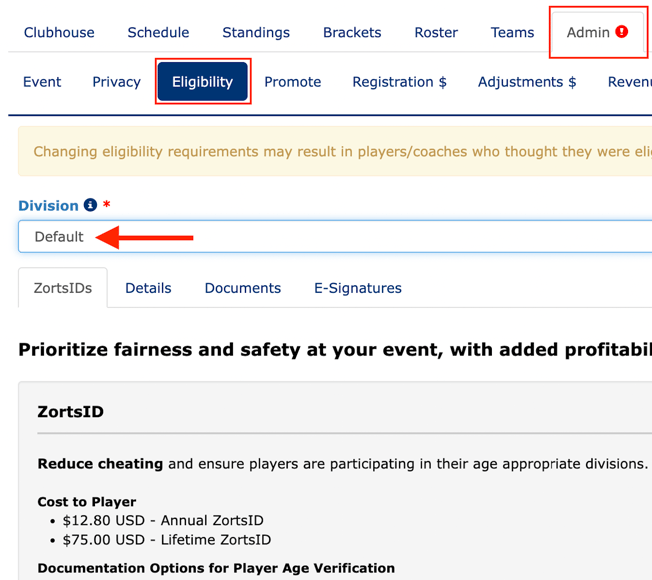
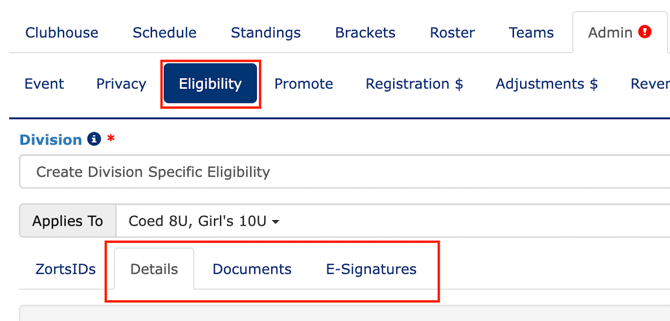
Within the event, click the ADMIN tabBelow the main tabs, there are a second set of tabs. Click ELIGIBILITY.Follow the screenshots below.
1. Click the dropdown that says “Default”. Note – this will not appear if you have not created divisions.
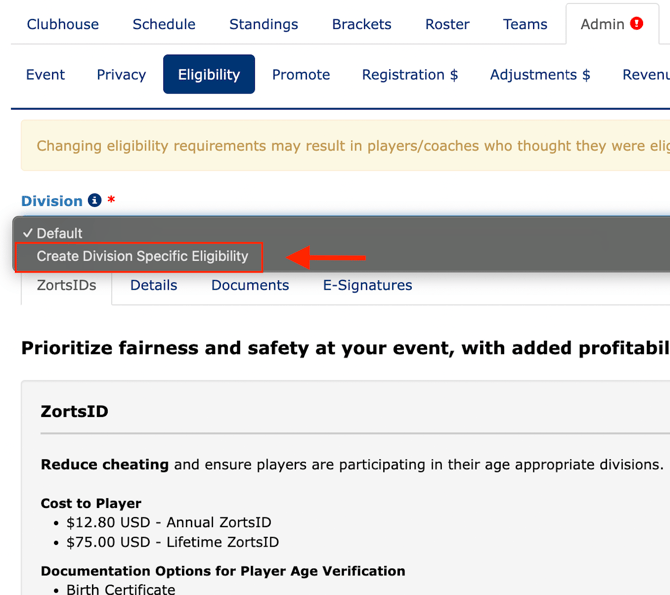
2. Select “Create Division Specific Eligibility”
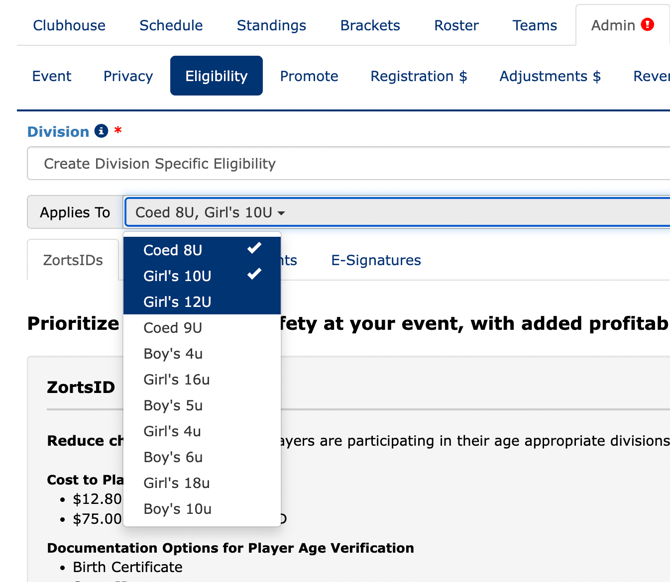
3. Select the division, or multiple divisions, to apply. If it applies to all divisions, please stop here. Using the “DEFAULT” option will apply to all divisions and creating specific eligibility is not necessary.
4. Scroll down and select the ZortsID eligibility you require for your selected divisions. Parents/participants will be sent a roster invite from your team coaches when they build their rosters. Once accepted, they will access their eligibility items to complete and will be prompted to purchase a ZortsID that is reviewed by Zorts staff within 1-5 days.
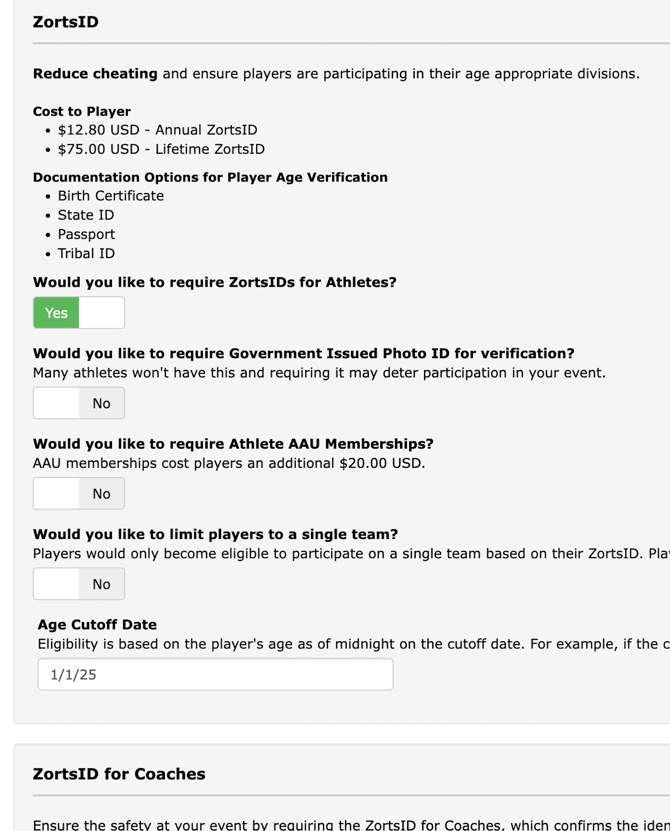
5. Enter the cutoff date you’d like to be applied to the divisions selected. For example, if you’d like all participants in the 12u division to be 12 years old on or before 1/1/25, enter it here. The system will calculate the age of the participant based on their valid ZortsID and flag any ineligible participants. The status of the participants who are ineligible due to age will say “invalid age” and the parent, participant, coach, and Event ADMIN will see that status.

Be careful when editing this setting, as it will apply to ALL ALREADY ELIGIBLE participants in the chosen divisions, as well as new participants.
6. Navigate to the remaining three tabs under 'Admin' > 'Eligibility' labeled 'Details', 'Documents', and 'E-signatures' to adjust eligibility settings for the currently selected divisions.
7. CLICK SAVE!