---
title: How to Add a Member to an Organization or Event
description: How to Add a Member to an Organization or Event
---
[Skip to content](https://zorts.zortssports.com/knowledge-base/how-to-add-a-member-to-an-organization-or-event#main-content)
English
Show submenu for translations

Open main navigation
Close main navigation
- English
Show submenu for translations
- [Help](https://zorts.zortssports.com/support_ticket)
[Help](https://zorts.zortssports.com/support_ticket?hsLang=en)
How can we help you?
- There are no suggestions because the search field is empty.
1. [Zorts Knowledge Base](https://zorts.zortssports.com/knowledge-base?hsLang=en)
2. [Event Administrators](https://zorts.zortssports.com/knowledge-base/event-administrators?hsLang=en)
# How to Add a Member to an Organization or Event
## Below are step-by-step instructions for how to add staff to an organization or to an individual event
> **Adding Staff to Organization VS Events**
> Organization: This will allow the member access to ALL events listed under the organization
> Event: This will allow the member access ONLY to the event that they are added under
> **Different Member Roles**
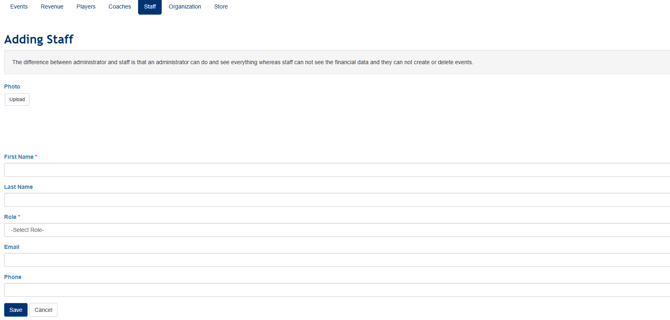
> Administrator: This will allow the member to manage any aspect of the event and/or organization as well as the financial information
> Staff: This will allow the member to manage any aspect of the event and/or organization BUT will **NOT** allow them access to financial information
> Referee, Scout/Media, Score Keeper: This will allow the member access to ONLY the '**Clubhouse**', '**Schedule**', and '**Standings**' tab.
### To Add Member to the Organization
1. Navigate to [https://zortssports.com](https://zortssports.com/) and log into your account
2. Select your organization

3. Click on the 'Staff' tab
4. Click 'Add'
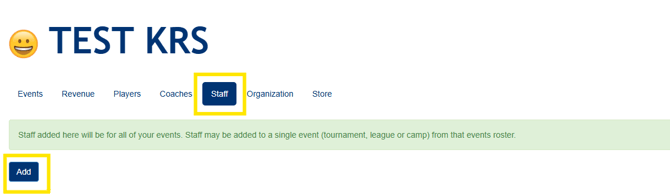
5. Add in the members information and assign them their role then click 'Save'
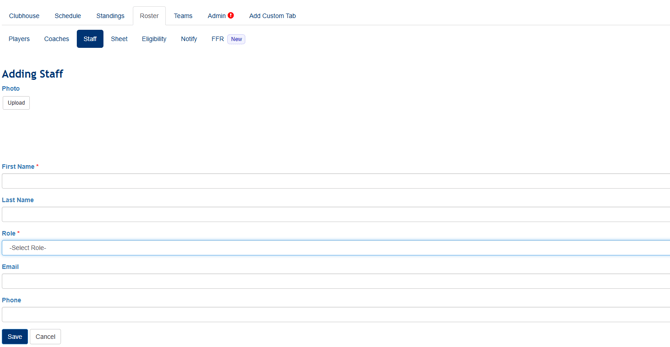
### To Add Member to an Event
1. Navigate to [https://zortssports.com](https://zortssports.com/) and log into your account
2. Select the organization then event
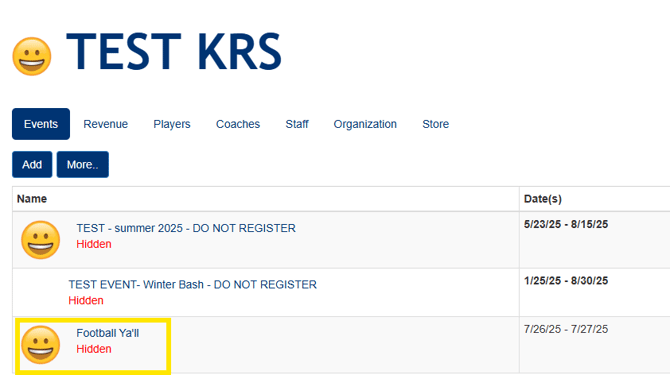
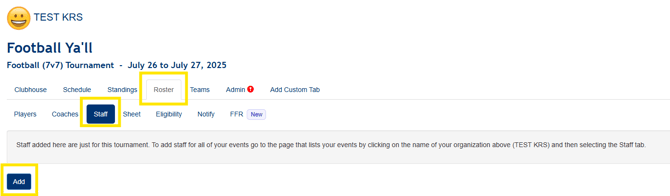
3. Click the 'Roster' tab
4. Click the 'Staff' tab
5. Click the 'Add' button
6. Add in the members information and assign them their role then click 'Save'
- [Coaches](https://zorts.zortssports.com/knowledge-base/coaches?hsLang=en)
- [Participants](https://zorts.zortssports.com/knowledge-base/participants?hsLang=en)
- [Event Administrators](https://zorts.zortssports.com/knowledge-base/event-administrators?hsLang=en#main-content)
- [Payment Management](https://zorts.zortssports.com/knowledge-base/event-administrators?hsLang=en#payment-management)
- [Coaches and Event Administrators](https://zorts.zortssports.com/knowledge-base/coaches-and-event-administrators?hsLang=en)
- [STRIPE Training](https://zorts.zortssports.com/knowledge-base/stripe-training?hsLang=en)
[](http://zortssports.com)
Copyright © 2025, Zorts