---
title: How to Navigate Admin > Eligibility & Add Division Specific Eligibility
description: How to Add Division Specific Eligibility & Navigate Admin > Eligibility
---
[Skip to content](https://zorts.zortssports.com/knowledge-base/how-to-add-division-specific-eligibility-navigate-admin-eligibility#main-content)
English
Show submenu for translations

Open main navigation
Close main navigation
- English
Show submenu for translations
- [Help](https://zorts.zortssports.com/support_ticket)
[Help](https://zorts.zortssports.com/support_ticket?hsLang=en)
How can we help you?
- There are no suggestions because the search field is empty.
1. [Zorts Knowledge Base](https://zorts.zortssports.com/knowledge-base?hsLang=en)
2. [Event Administrators](https://zorts.zortssports.com/knowledge-base/event-administrators?hsLang=en)
# How to Navigate Admin \> Eligibility & Add Division Specific Eligibility
## Below is a step-by-step example showing how to navigate the new Admin \> Eligibility page layout and add Division Specific Eligibility.
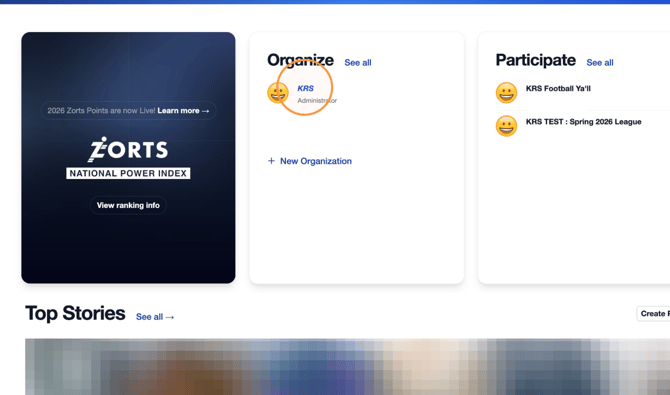
1. Navigate to [https://zortssports.com](https://zortssports.com) and log into your account.
Then, click on your organization.
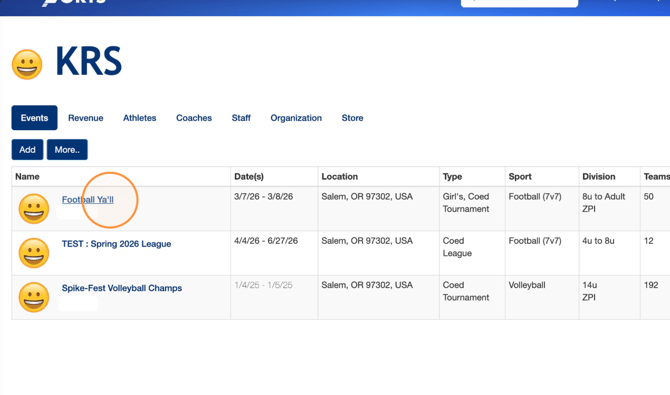
2. Select the event you'd like to edit.
3. Click **Admin**
**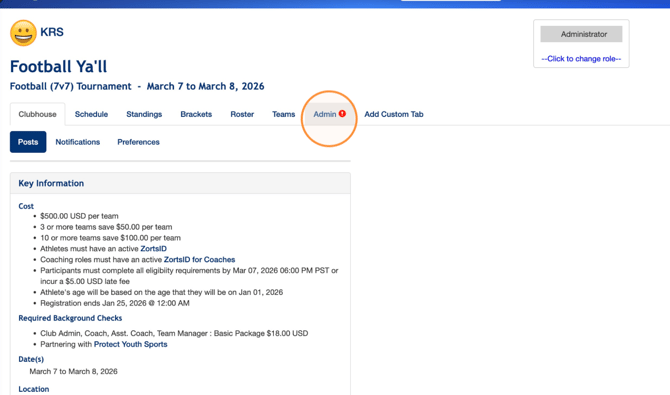**
4. Click "Eligibility"
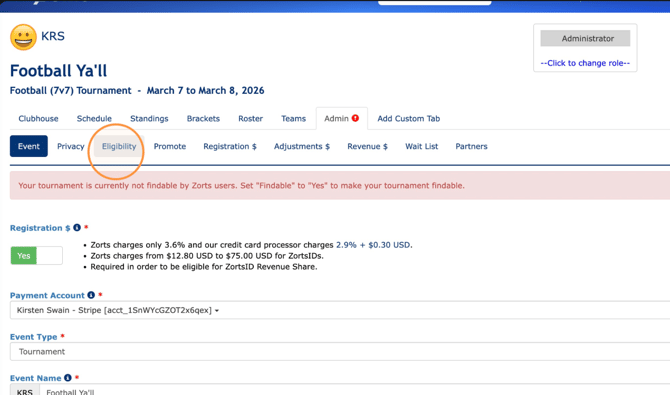
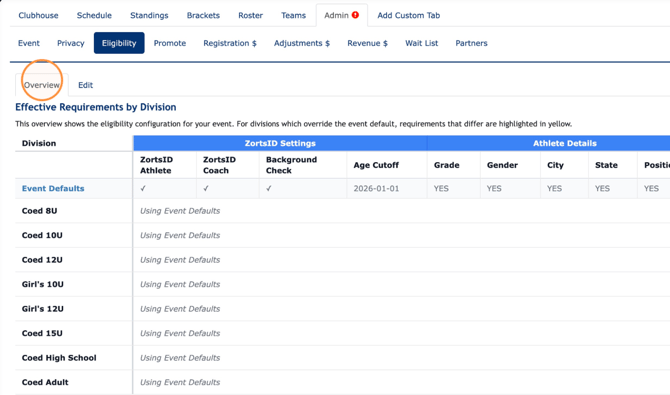
5. The first tab is the "Overview" of all of your currently configured eligibility settings
-- If all division have the same settings, they will all be listed under "Event Defaults."
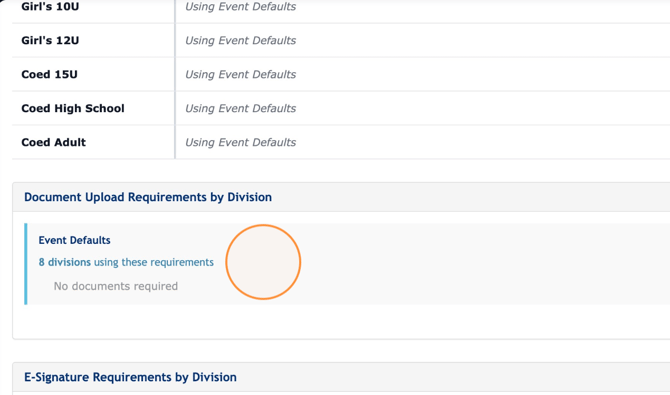
6. Scroll down to view your "Document Upload Requirements by Division", if any have been set.
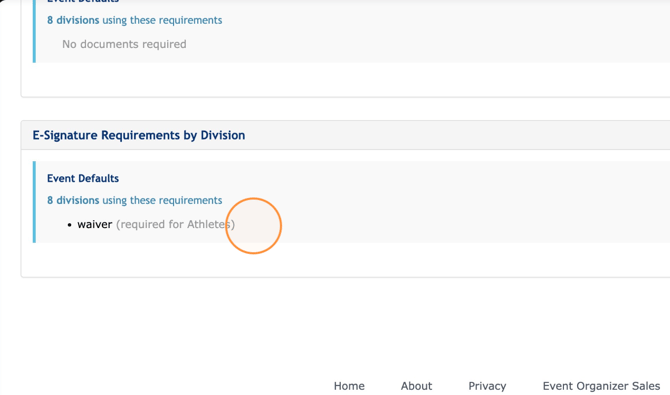
7. Scroll down further to see your event's "E-Signature Requirements by Division", if any have been set.
8. To edit any of your eligibility settings, click "Edit".
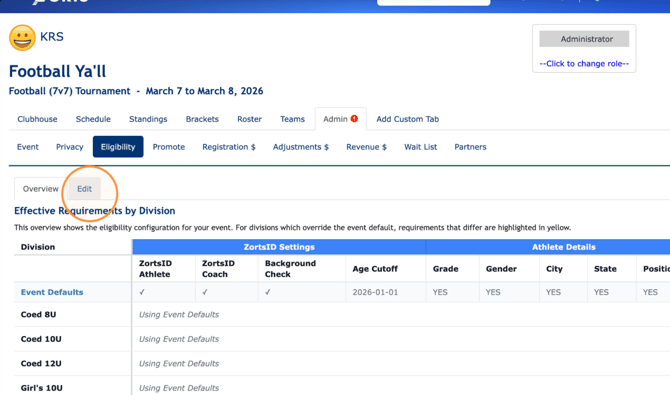
9. Note that you are **currently editing event defaults**.
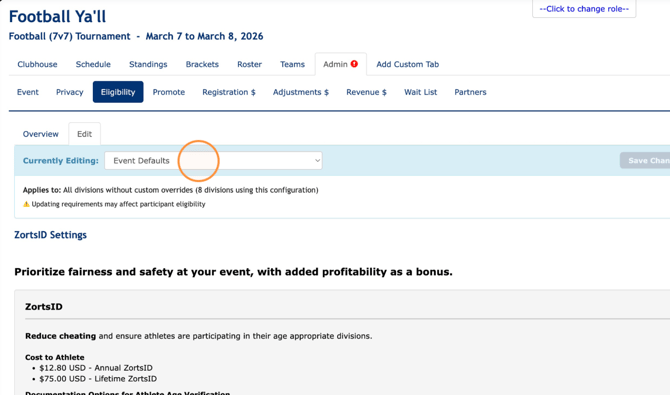
10. For this example, we do not want to require athletes under default eligibility to enter grade level, so we will switch this detail to "No".
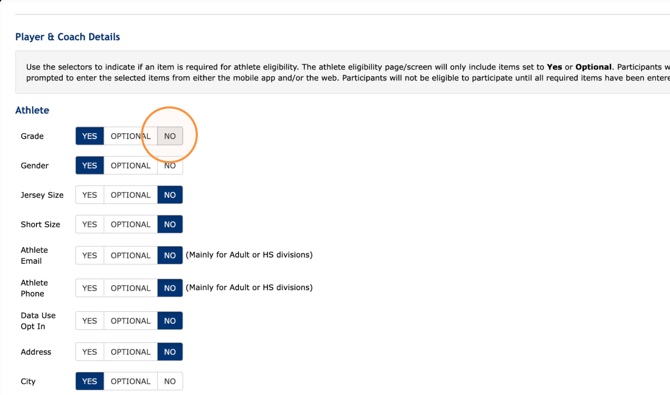
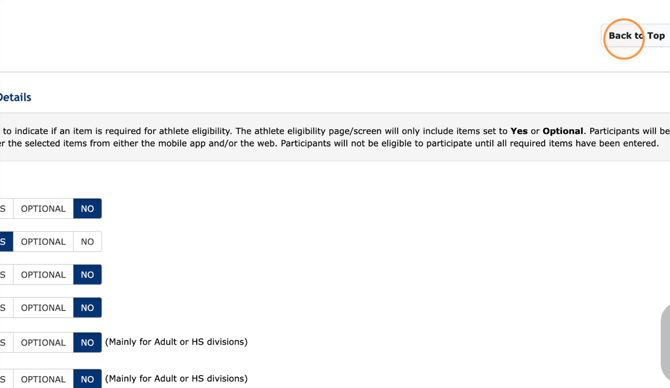
11. Click "Back to Top"
12. Click "Save Changes"
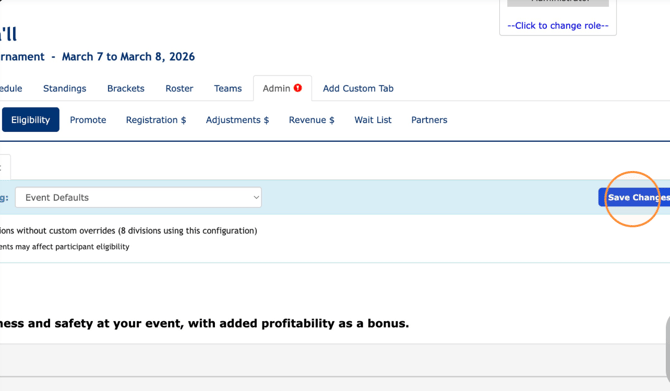
13. Note that "Grade" will no longer show up on the table since it is no longer required for eligibility.
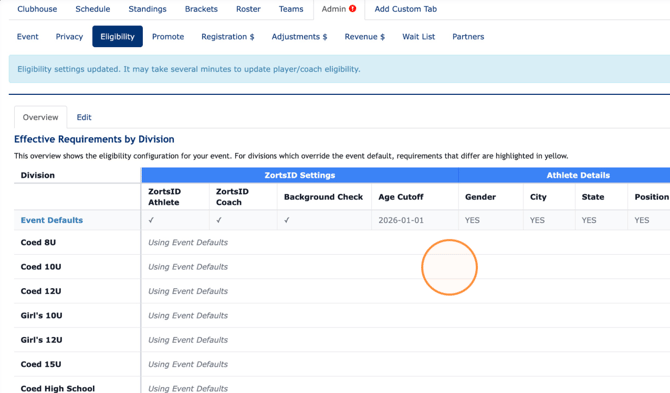
14. If you'd like to require certain items for certain divisions, but not for others,
you'll want to create "Division Specific Eligibility." To do this, click "Edit."
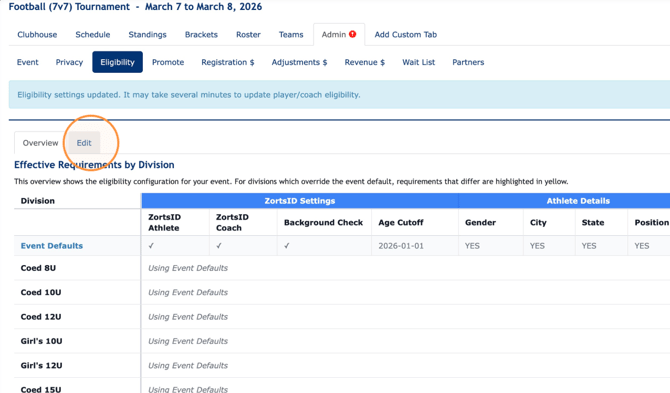
15. Click this drop down menu and select the "➕ Create Division Specific
Eligibility" option.
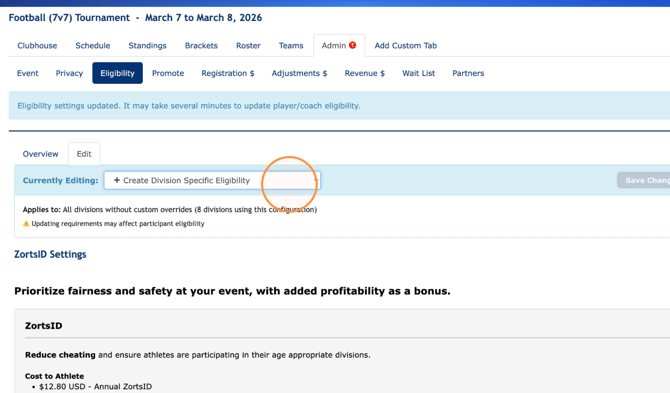
16. Click "+ Add Division"
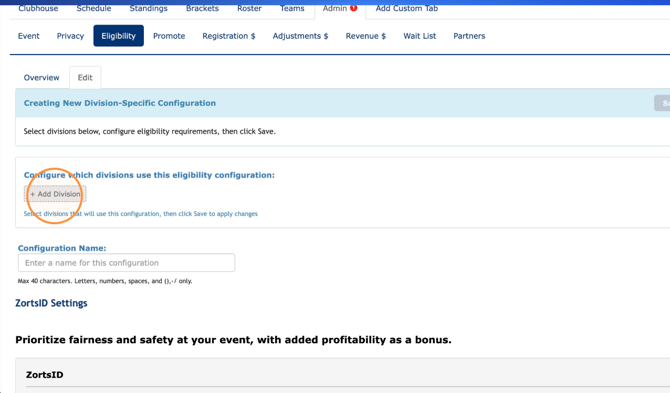
17. Divisions selected will appear here and will be applied to this eligibility configuration.
--Multiple divisions may be added and will share the same requirements.
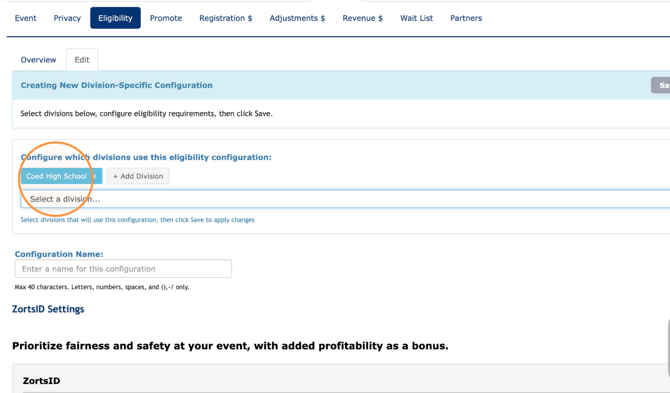
18. Click the "Configuration Name" field.
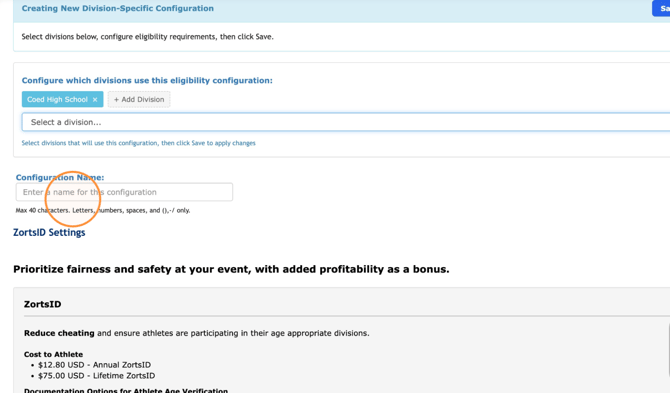
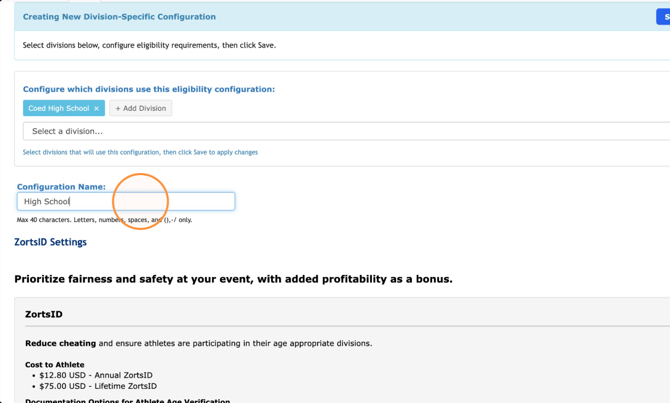
19. Enter whatever you'd like to name this specific configuration.
--For this example, the configuration is called "High School" so we'll easily
know which division is included in the configuration.
20. We would like the 'High School' division to enter their grade level so I will
select "Yes" next to the "Grade" detail.
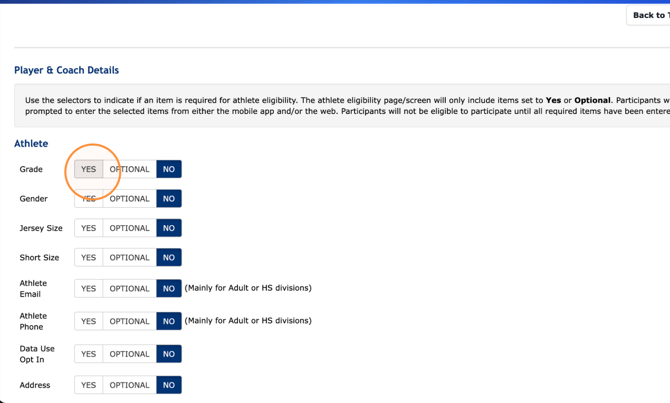
21. Select "Yes" on every detail you'd like required for the 'High School' division.
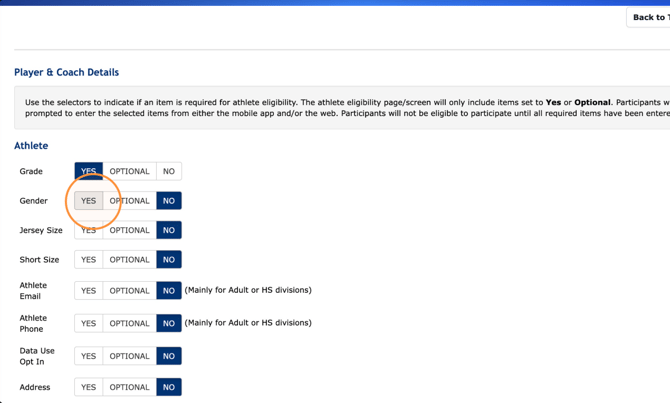
22. Click "YES"
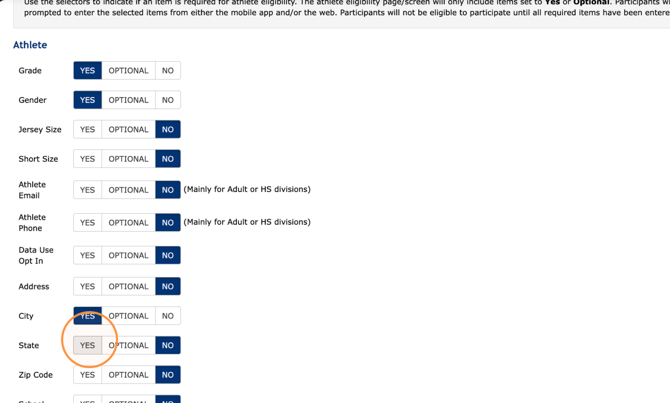
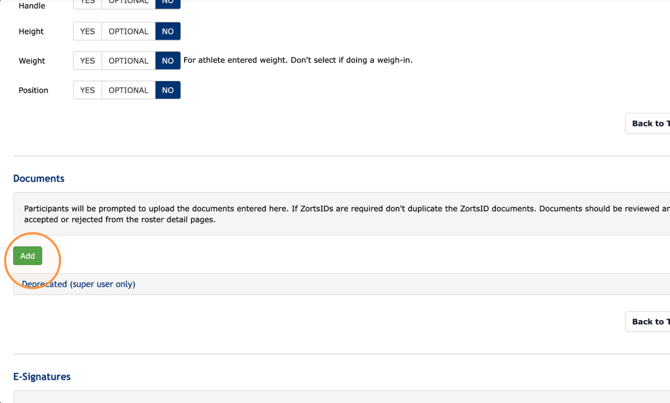
23. For this example, we'd also like to require a school document to prove
grade level for the 'High School' division.
--scroll down slightly and click "Add" under the "Documents" section.
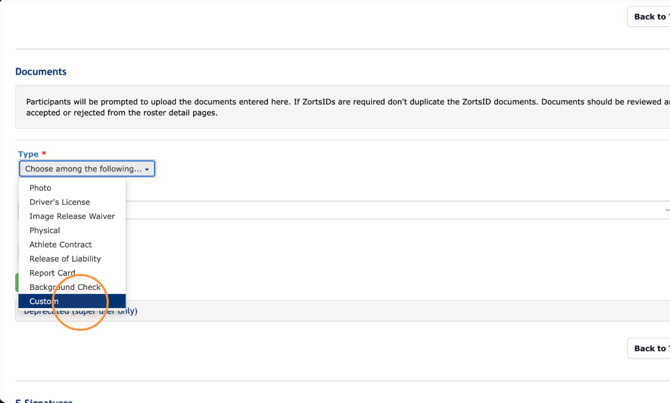
24. Click the "Type" drop down
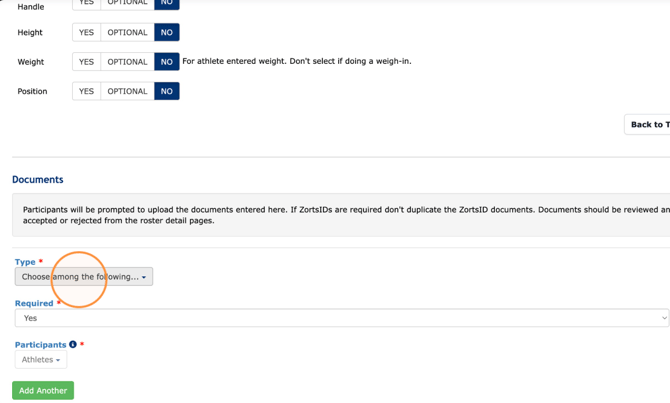
25. Select which type of document you'd like to require.
--If you'd like to include more specific details, select "Custom."
---This is recommended for the best participant experience.
### 
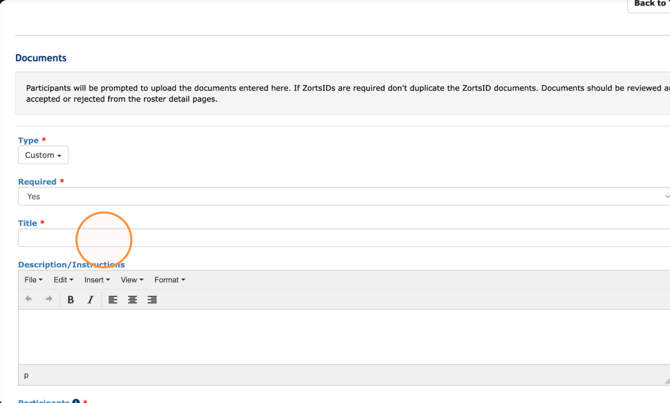
26. Click the "Title" field to name your document upload requirement.
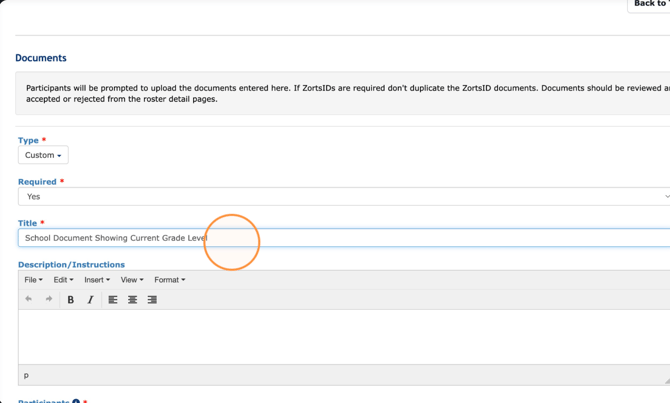
27. Add a title for your "Custom"document upload and any special instructions
needed.
28. Click "Back to Top"
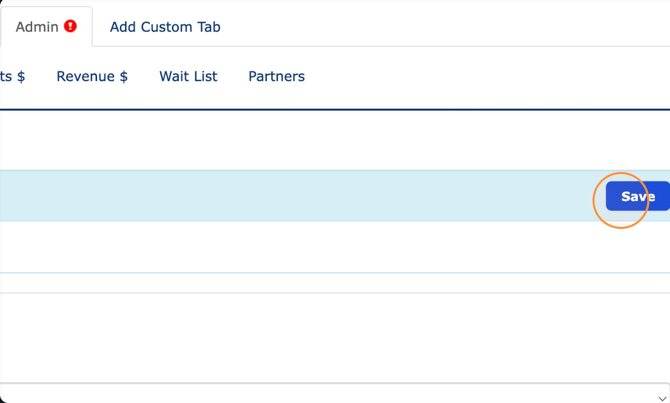
29. Click "Save"
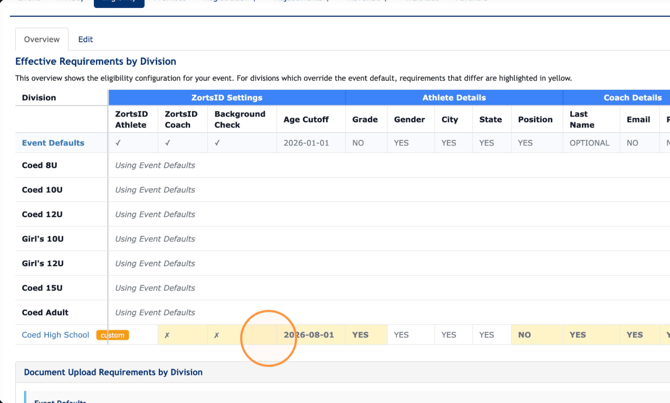
30. Notice that our table has more information now. There is a new row of
requirements displayed for our new custom configuration.
--All "Custom" requirements that differ from "Event Defaults" and are
highlighted in yellow
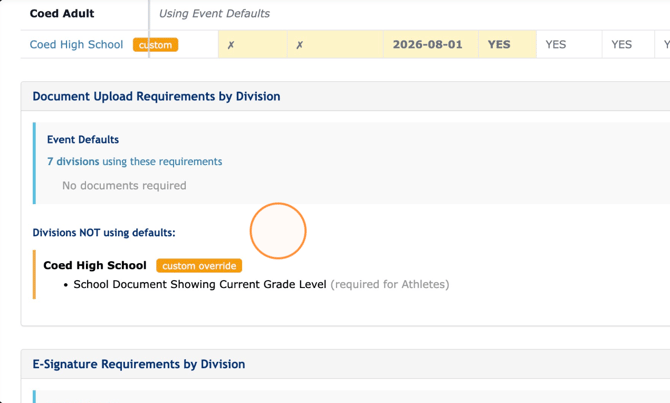
31. Scroll down slightly and note that there is a new section in the "Document
Upload Requirements.." displaying the requirements for the new custom configuration.
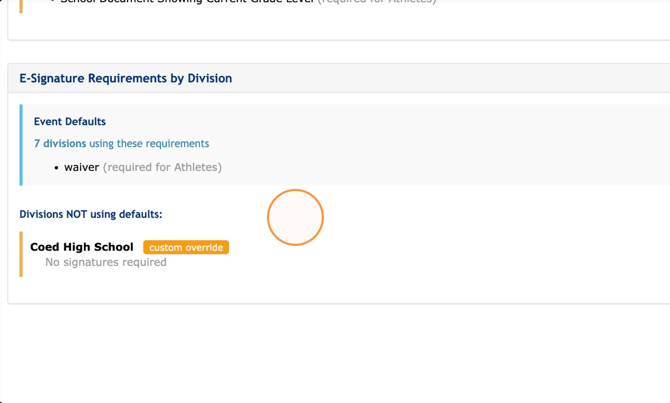
32. Further down, a new section is also present to denote the differences in the
"E-Signature Requirements.." section.
33. After further review, we can see that there are some discrepancies in the new configuration that we'd like to correct.
--To get there you can either click "Edit"..
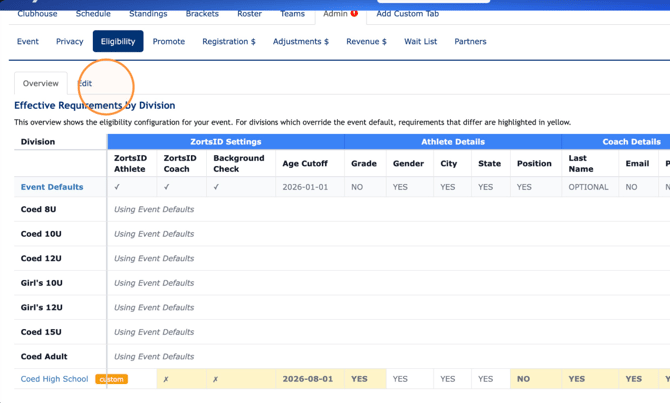
34. Or, click directly on the "Coed High School" link.
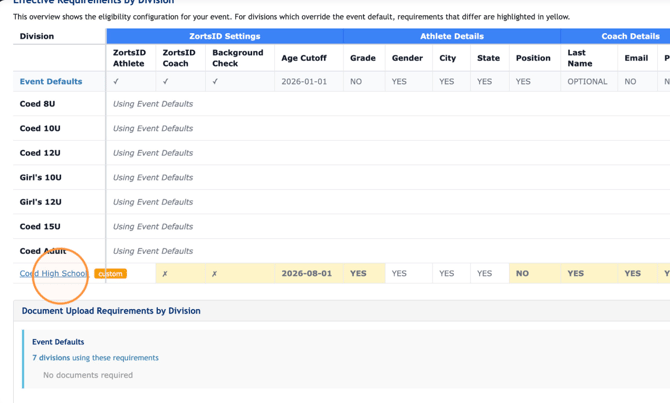
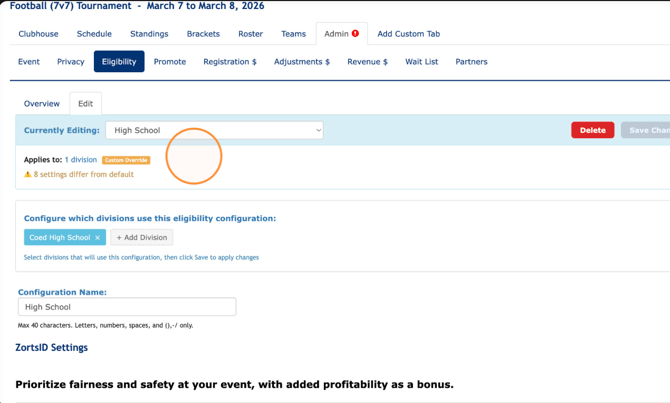
35. Note that we are currently editing the "High School" configuration which
applies to 1 division.
--Fix anything that you saw was incorrect from the "Overview" tab
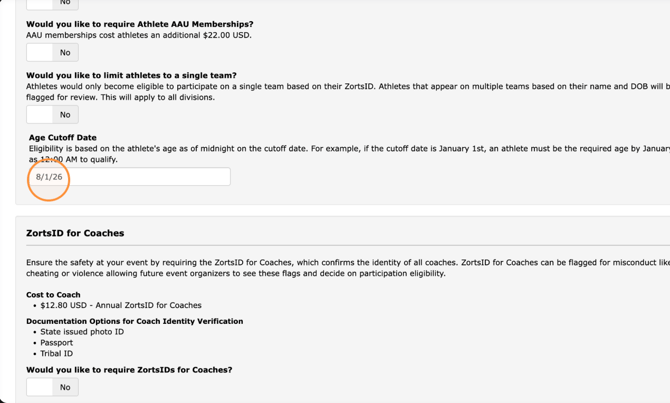
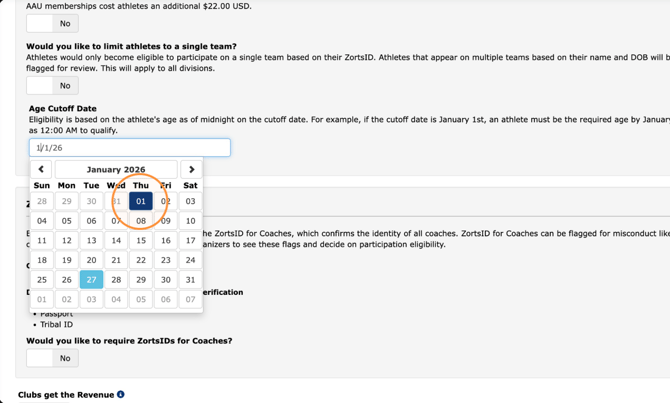
36. We want the "Age Cutoff Date" to match, so we'll change this..
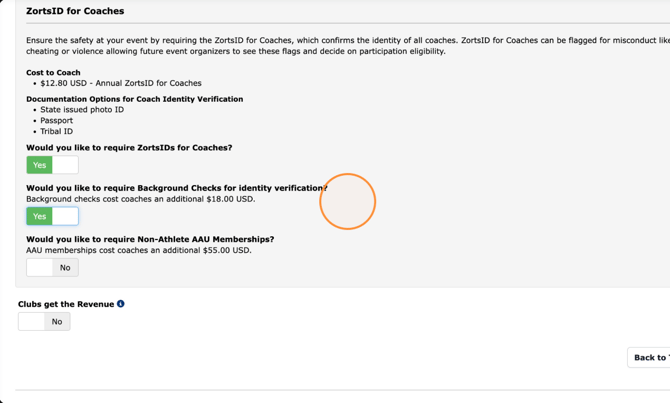
37. We want the "ZortsID for Coaches" requirements to match as well, so we'll
update this to "YES" and require background checks
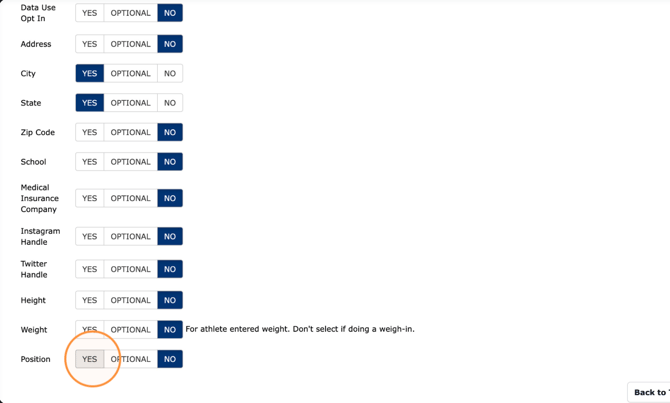
38. We also want all details (besides grade level) to match so we'll adjust
accordingly here..
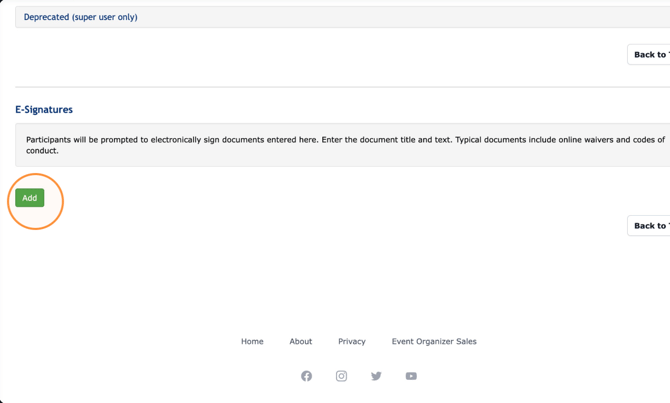
39. And lastly, we ALWAYS want to require an E-Signature waiver for every division, so we
will scroll down and click "Add" under the "E-Signature" section.
40. Enter your waiver title and text.
\--**Note:** Any E-Signature or Document Upload requirements added to a **custom configuration** will apply **only to athletes**.
---If you need a requirement to apply to coaches, please configure it under
the “Event Default” settings. Coaches will always fall under the "Event
Default" configuration.
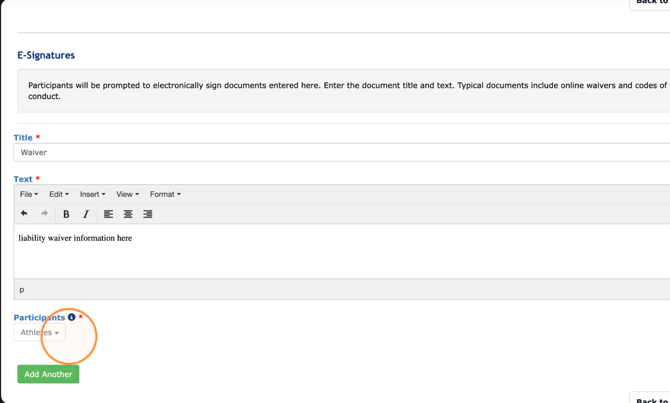
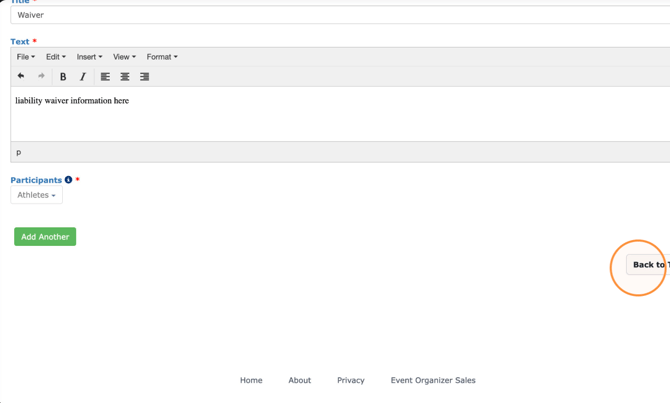
41. Click "Back to Top"
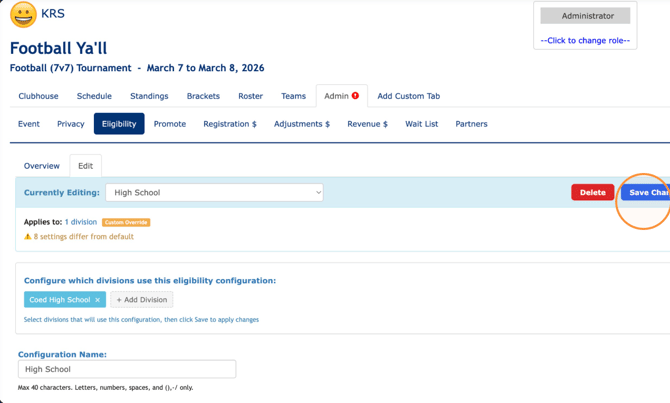
42. Click "Save Changes"
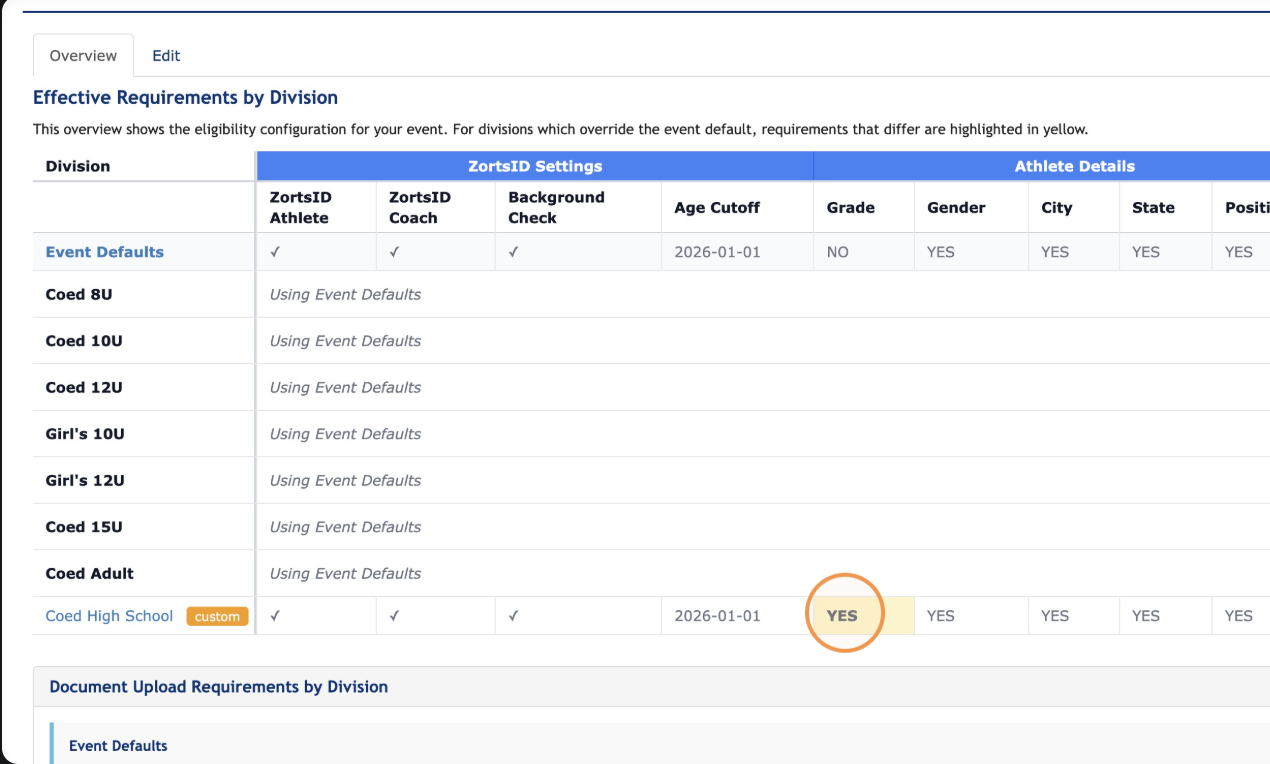
43. Now, the only difference in the "ZortsID Settings" and "Athlete Details" table
is "Grade."
--This was the desired outcome.
44. Scroll down and notice that the "School Document.." is required for the "High School" configuration, and not the "Event Defaults."
--This was the desired outcome.
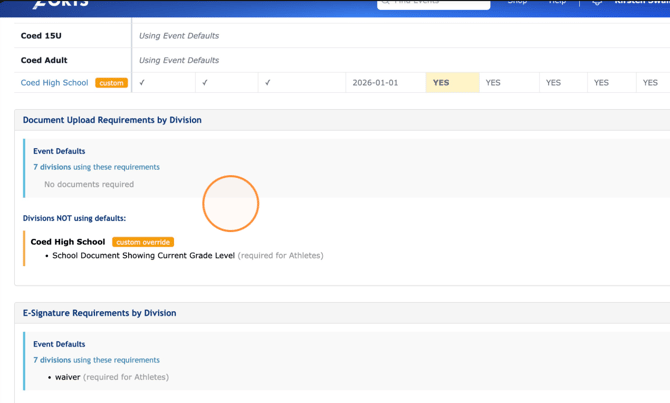
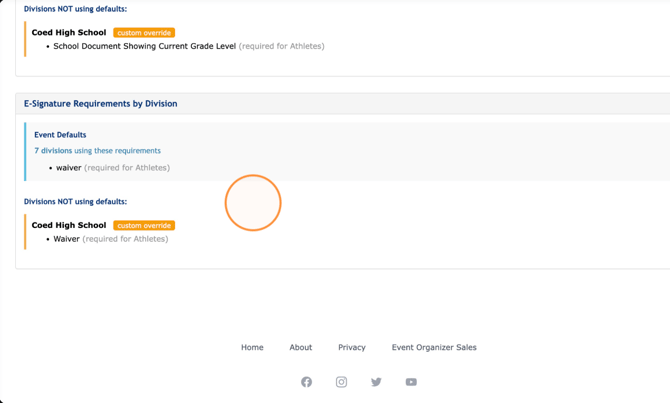
45. Lastly, notice that the E-Signature Waiver is required for all divisions.
--This is always highly recommended.
- [Coaches](https://zorts.zortssports.com/knowledge-base/coaches?hsLang=en)
- [Participants](https://zorts.zortssports.com/knowledge-base/participants?hsLang=en)
- [Event Administrators](https://zorts.zortssports.com/knowledge-base/event-administrators?hsLang=en#main-content)
- [Payment Management](https://zorts.zortssports.com/knowledge-base/event-administrators?hsLang=en#payment-management)
- [Coaches and Event Administrators](https://zorts.zortssports.com/knowledge-base/coaches-and-event-administrators?hsLang=en)
- [STRIPE Training](https://zorts.zortssports.com/knowledge-base/stripe-training?hsLang=en)
[](http://zortssports.com)
Copyright © 2025, Zorts