Add/Link Stripe to the event
1. Navigate to https://zortssports.com and log into your account
2. Select your organization
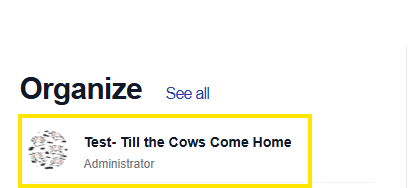
3. Select the specific event
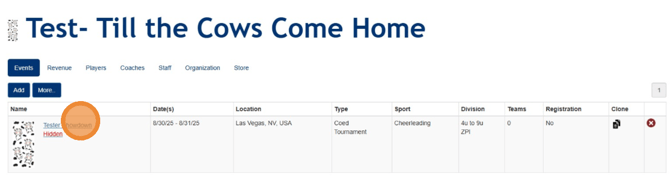
4. Click the Admin tab
5. Toggle the Registration to "Yes"
6. Click "Link or Create Stripe Account"
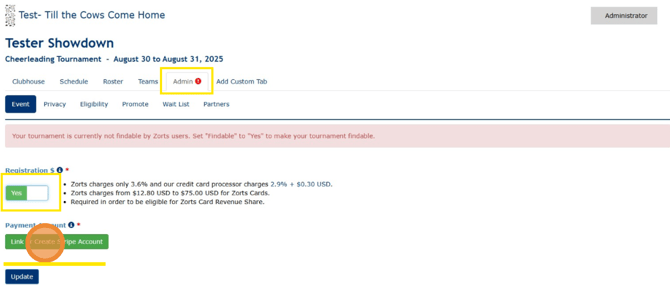
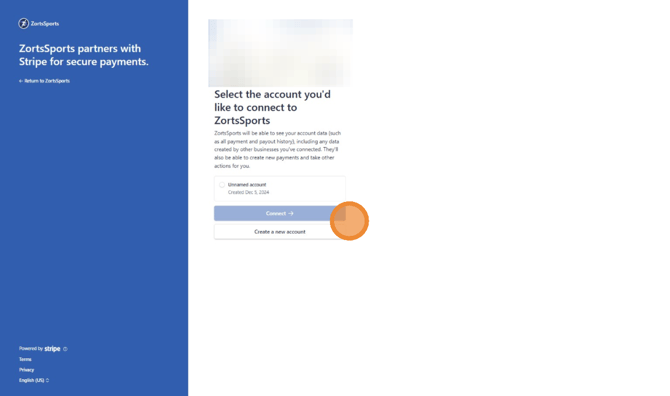
7. Choose to create a new Stripe account or connect an existing
Add/Link Stripe through your Zorts account
1. Navigate to https://zortssports.com and log into your account
2. Click on your account name in the top right corner
3. Select "Your Account" from the dropdown menu

4. Click Payment Accounts > Link/Add Account

5. Choose to create a new Stripe account or connect an existing
How to Remove a Stripe from your Zorts account
1. Navigate to https://zortssports.com and log into your account
2. Click on your account name in the top right corner
3. Select "Your Account" from the dropdown menu
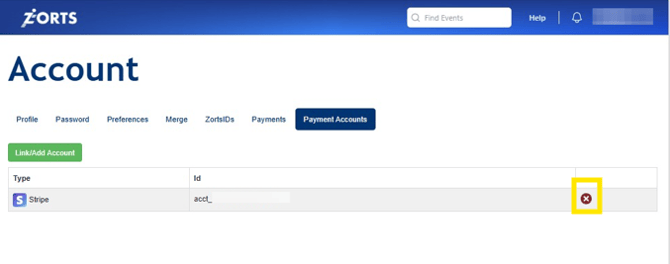
4. Click Payment Accounts
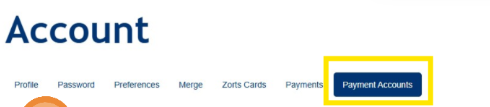
5. Select the Red X next to the Stripe account that you would like removed from Zorts
* Once a Stripe account is removed it is no longer associated with your Zorts account.