---
title: "How to Fix a ZortsID When it's \"Incomplete\""
description: How to Fix a Zorts Card When It's 'Incomplete'
---
[Skip to content](https://zorts.zortssports.com/knowledge-base/how-to-fix-a-zorts-card-when-its-incomplete#main-content)
English
Show submenu for translations

Open main navigation
Close main navigation
- English
Show submenu for translations
- [Help](https://zorts.zortssports.com/support_ticket)
[Help](https://zorts.zortssports.com/support_ticket?hsLang=en)
How can we help you?
- There are no suggestions because the search field is empty.
1. [Zorts Knowledge Base](https://zorts.zortssports.com/knowledge-base?hsLang=en)
2. [Participants](https://zorts.zortssports.com/knowledge-base/participants?hsLang=en)
# How to Fix a ZortsID When it's "Incomplete"
## Below are step-by-step instruction on how to fix your ZortsID after it has been reviewed and rejected on the website, iPhone app, and Adroid app.
### Table of Contents
- [Website](https://zorts.zortssports.com/knowledge-base/how-to-fix-a-zorts-card-when-its-incomplete#web)
- [iPhone App](https://zorts.zortssports.com/knowledge-base/how-to-fix-a-zorts-card-when-its-incomplete#iPhone)
- [Android App](https://zorts.zortssports.com/knowledge-base/how-to-fix-a-zorts-card-when-its-incomplete#Android)
### Website
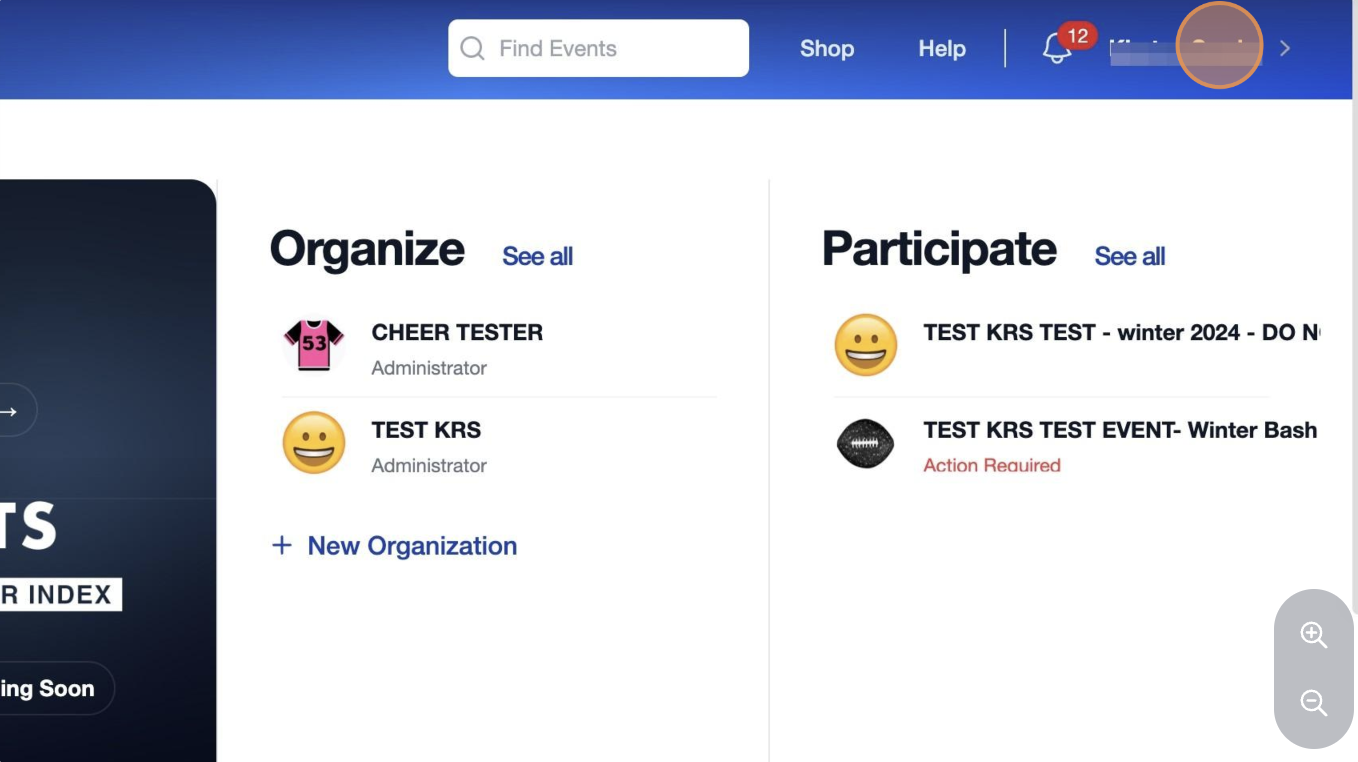
1. After logging into your account, select your name in the upper right hand corner.
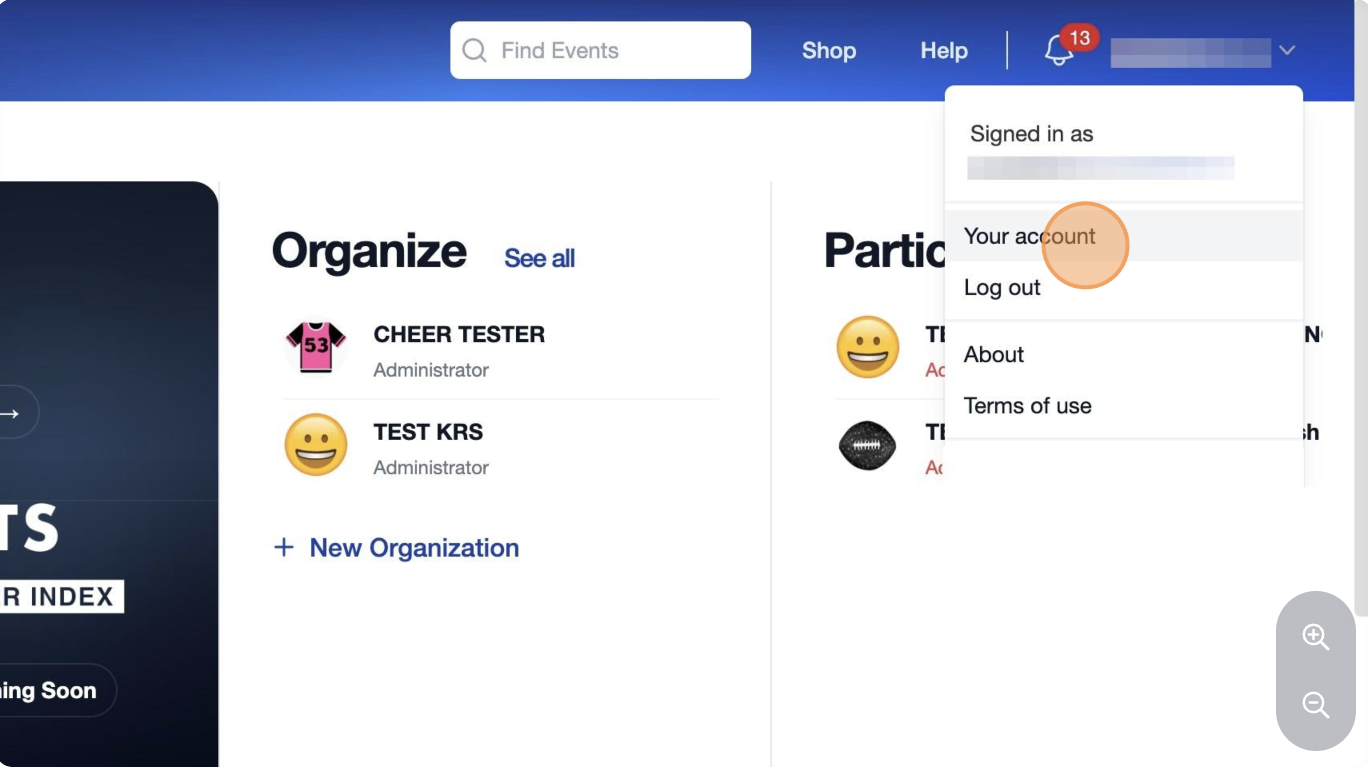
2. Select "**Your account**".
3. Select "**ZortsIDs**".

4. Click "**Actions**" underneath the ZortsID in question.

5. Select "**Fix ZortsID**".

6. Note the rejection notice near the field(s) that needs to be corrected.
a. Please review this notice thoroughly as it will help you identify the issue and make the necessary corrections.

8. Click "**Update**" underneath the rejection notice.

9. Click to upload a new headshot photo.
a. Please pay careful attention to the guidelines listed to ensure your headshot photo will be approved promptly.

10. Crop and position the photo as needed (it should **only** show from the shoulders up).
a. Click "**Save**".

11. Review the terms once again. Provide your consent by entering your name and checking the box. Click "**Update**" to submit your new photo.

12. If your document must be corrected as well, please click "**Update**" under the rejection notice.

13. Select your **document type**, click to upload a new, clear photo of your document, and click "**Update**".
a. Please pay careful attention to the guidelines listed to ensure your document will be approved promptly.

14. Please note the ZortsID status is now "Pending Review". The ZortsID will be processed within 3-5 days unless a faster processing speed is purchased.
a. If you’d prefer a faster processing speed, please click [HERE](https://zorts.zortssports.com/knowledge-base/how-to-purchase-priority-processing-for-your-zorts-card?hsLang=en) to view instructions for purchasing priority processing.

### **iPhone App**
1. Log into your account and click "**Account**" at the bottom right.
a. Click "**ZortsIDs**".
2. Click on your ZortsID that is labeled "Incomplete".
3. Click on the section that is labeled "Rejected" to read the rejection notice and upload a new file.
  
4. After clicking the rejected field, note the rejection notice.
a. Please review this notice thoroughly as it will help you identify the issue and make the necessary corrections.
5. Click "**Upload**" to select a new photo.

6. Select a new "headshot" photo that follows the guidelines provided
> Please upload a **new, clear, forward-facing photo of the participant from the shoulders up**. The participant should be **alone**, with their **entire face visible and unobstructed**.
>
> **No** hats, sunglasses, mouth guards, filters, color edits, or watermarks. The photo should resemble a **state ID or passport photo**.

6. Repeat to upload a new photo of the document that adheres with the listed guidelines. a. Please review the rejection notice thoroughly as it will help you identify the issue and make the necessary corrections.
5. Click "**Upload**" to select a new photo of your document.
 
8. Please note that the ZortsID status is now "Processing". The ZortsID will be processed within 3-5 days unless a faster processing speed is purchased.
a. If you’d prefer a faster processing speed, please click [HERE](https://zorts.zortssports.com/knowledge-base/how-to-purchase-priority-processing-for-your-zorts-card?hsLang=en) to view instructions for purchasing priority processing.

### Android App
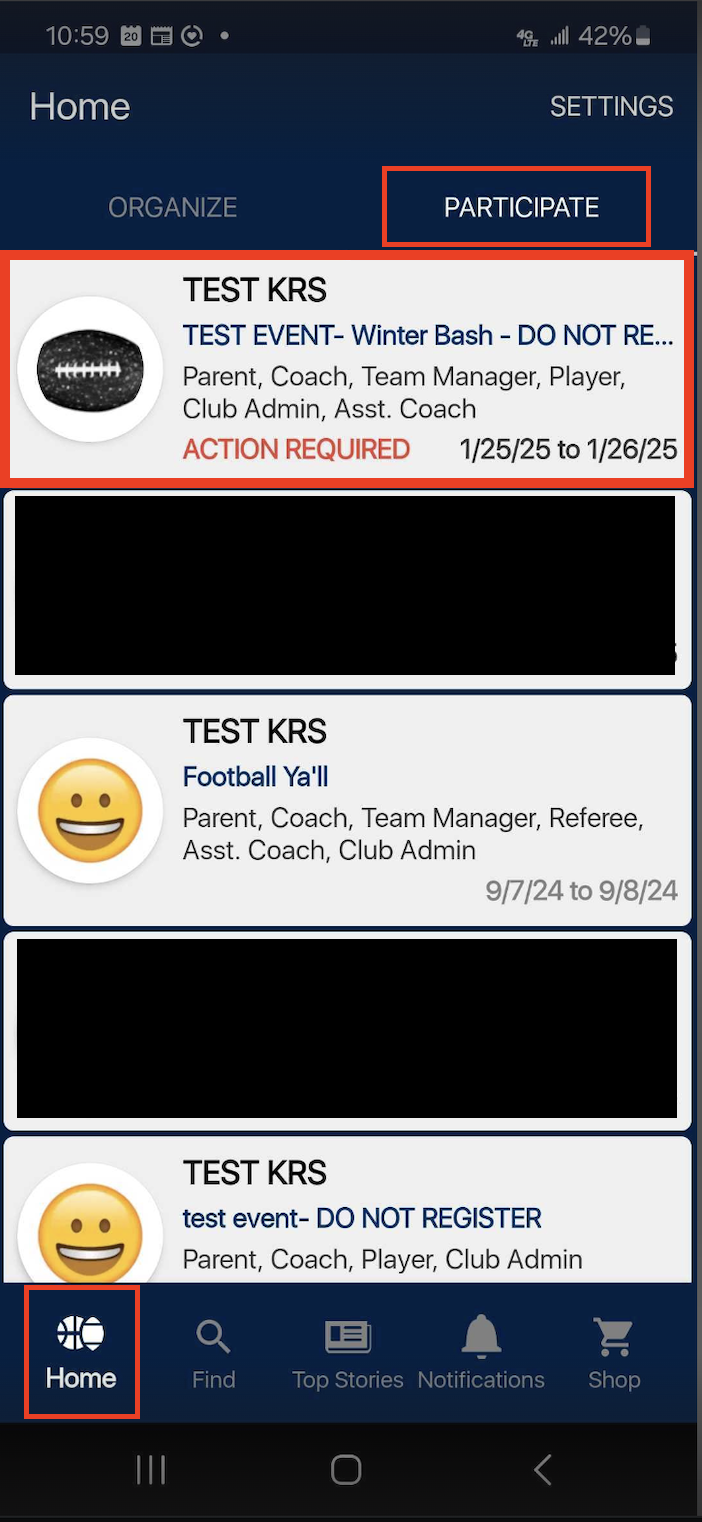
1. From your account, select the event you will be attending that requires attention.
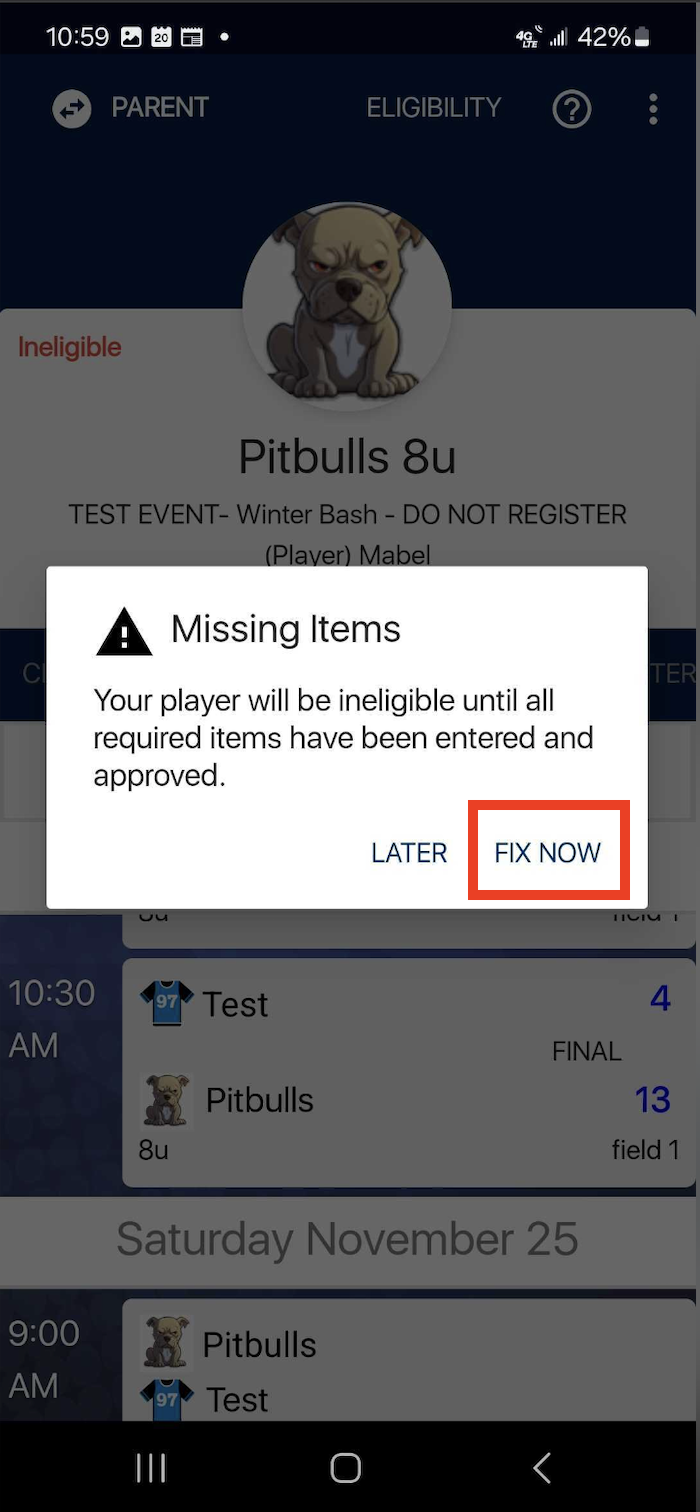
2. The system will alert you that your participant is missing info. Click "**Fix Now**".
a. If you do not receive the "Missing Items" notice, click "**Eligibility**" in the top right.
3. Note that "Athlete ZortsID (Incomplete)" is listed under "Missing Items".
a. Click on the ZortsID that is labeled "Incomplete".
4. Tap on the ZortsID again and a drop down menu will appear.
a. Select "**Edit**" from the drop down menu.

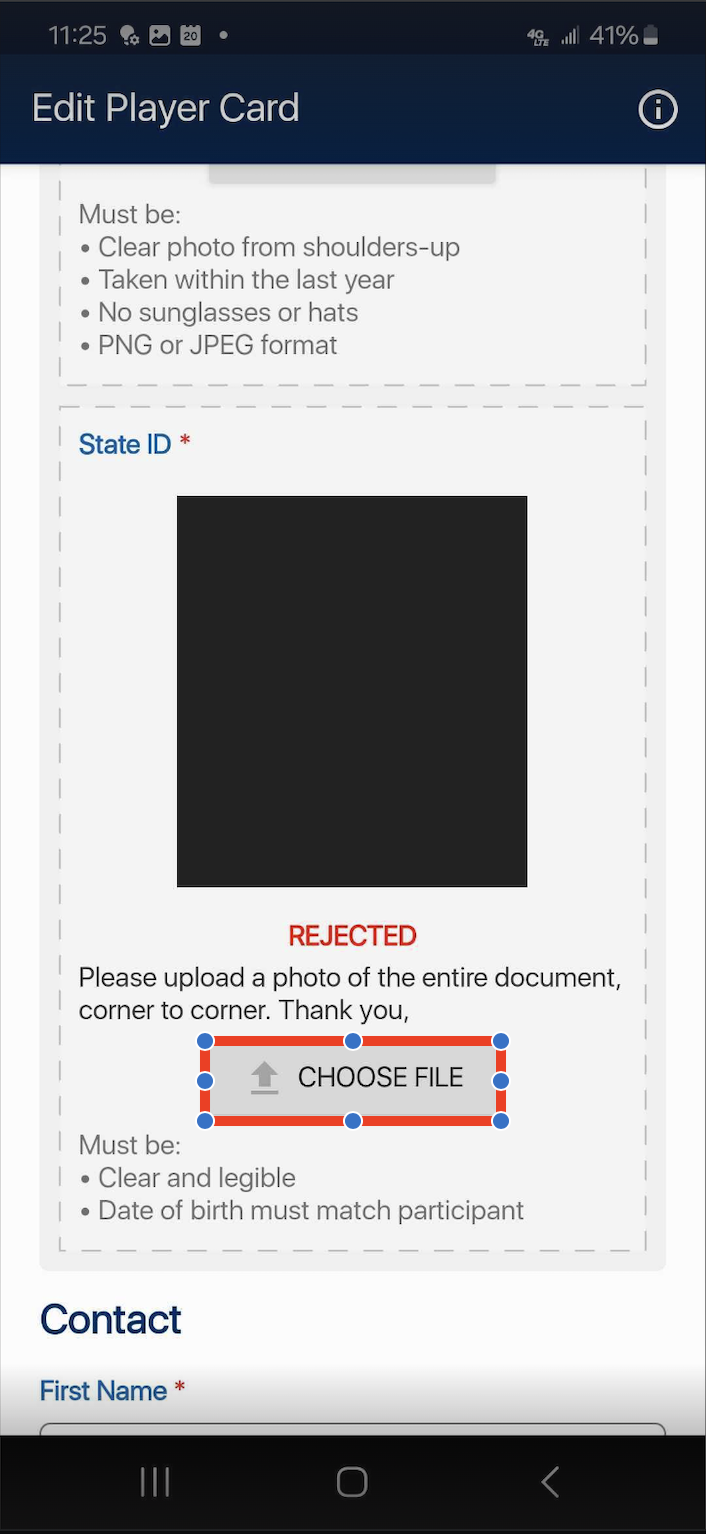
5. Note the rejection notice.
a. Please review this notice thoroughly as it will help you identify the issue and make the necessary corrections.
6. Click "**Choose File**" to select a new "headshot" photo that follows the guidelines provided
> Please upload a **new, clear, forward-facing photo of the participant from the shoulders up**. The participant should be **alone**, with their **entire face visible and unobstructed**.
>
> **No** hats, sunglasses, mouth guards, filters, color edits, or watermarks. The photo should resemble a **state ID or passport photo**.

7. Repeat to upload a new photo of the document that adheres with the listed guidelines. a. Please review the rejection notice thoroughly as it will help you identify the issue and make the necessary corrections.
8. Click "**Upload**" to select a new photo of your document.
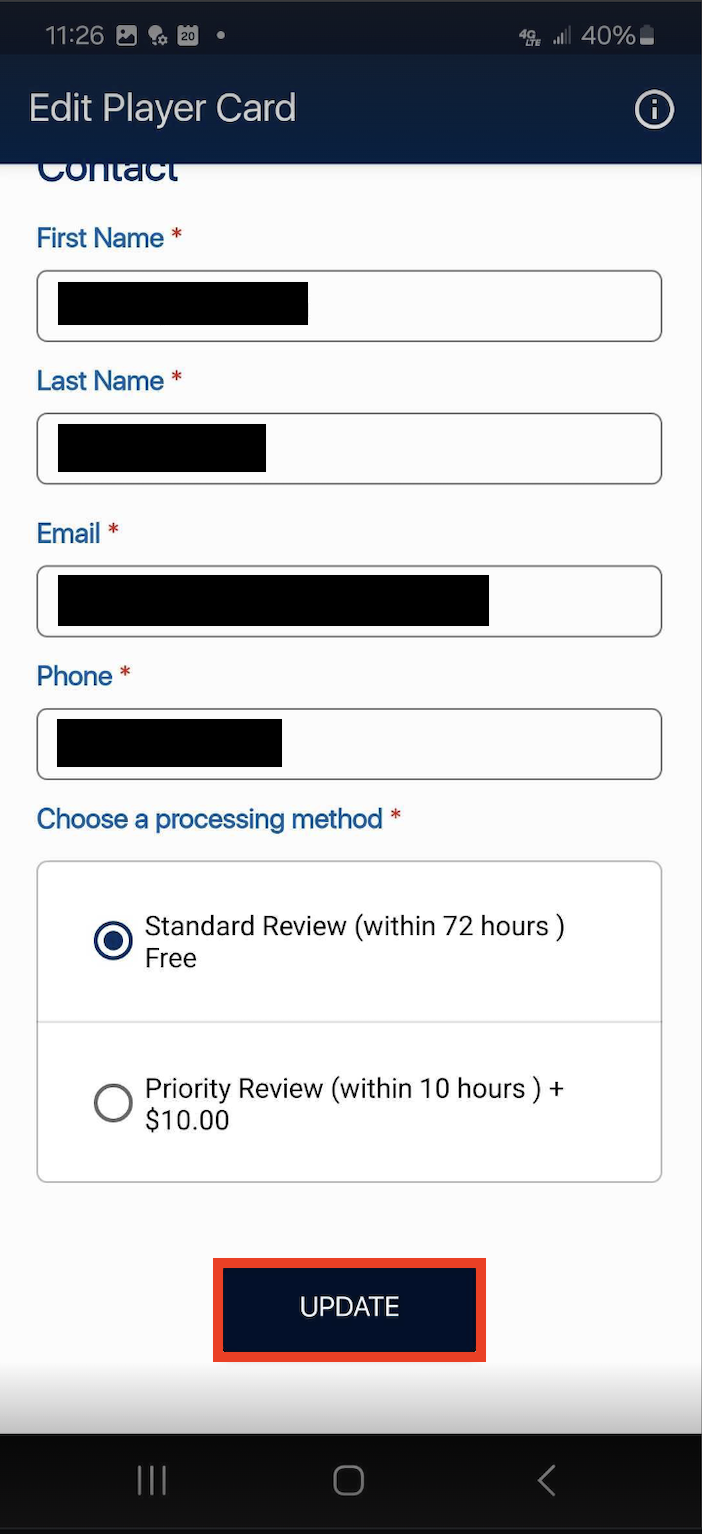
7. Scroll down, select your desired processing speed, and click "**Update**".
8. Please note that the ZortsID status is now "Pending Approval". The card will be processed within 3-5 days unless a faster processing speed is purchased.
a. If you’d prefer a faster processing speed, please click [HERE](https://zorts.zortssports.com/knowledge-base/how-to-purchase-priority-processing-for-your-zorts-card?hsLang=en) to view instructions for purchasing priority processing.
- [Coaches](https://zorts.zortssports.com/knowledge-base/coaches?hsLang=en)
- [Participants](https://zorts.zortssports.com/knowledge-base/participants?hsLang=en)
- [Event Administrators](https://zorts.zortssports.com/knowledge-base/event-administrators?hsLang=en#main-content)
- [Payment Management](https://zorts.zortssports.com/knowledge-base/event-administrators?hsLang=en#payment-management)
- [Coaches and Event Administrators](https://zorts.zortssports.com/knowledge-base/coaches-and-event-administrators?hsLang=en)
- [STRIPE Training](https://zorts.zortssports.com/knowledge-base/stripe-training?hsLang=en)
[](http://zortssports.com)
Copyright © 2025, Zorts