
Before completing the steps below, please log in to your account and open the event you want to merge the previous roster into. You must be viewing the event from a Coach, Assistant Coach, or Team Manager role in order to merge a previous roster or individual players.
To access a previous roster or participants, you must have held a coaching role in that previous event.
Website 
- Select the Roster > Athletes Tab.
- Click 'Add'.
- Select ‘Previous Roster’ or ‘Previous Athletes’.
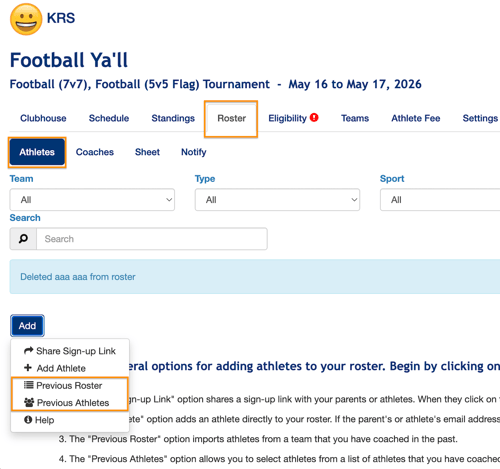
Previous Roster Selection (Web)
- View the roster information (season/tournament/event, sport, date, coaches, etc.) to ensure you are selecting the correct roster.

*If you have multiple divisions to choose from in the current event:
2a. Click the dropdown menu labeled 'Not Selected' and select the current roster that you wish to add to.

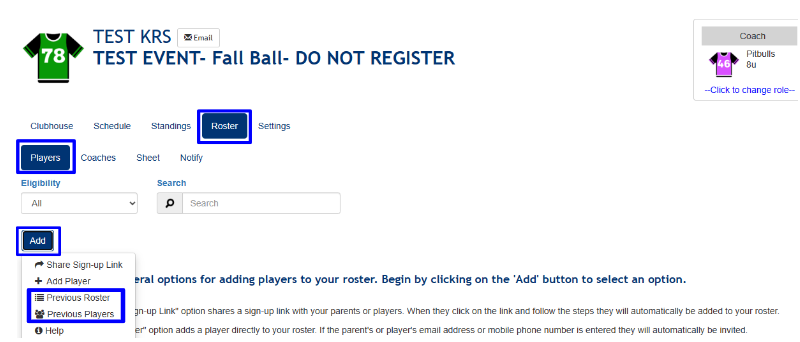 . *If you only have one division available for this event:
2b. Select the division you'd like to merge by clicking the box next to it

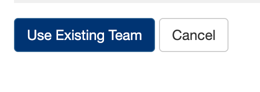
3. Scroll to the bottom and click 'Use Existing Team'
Previous Player(s)/Participant(s) Selection (Web)
- Select the roster you'd like to add to from the 'Team' drop down

2. select the participant's that you would like to add
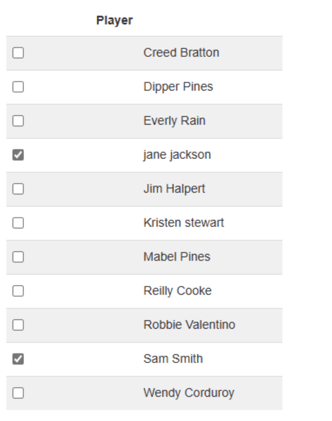
3. click 'Add Players' at the bottom of your screen