
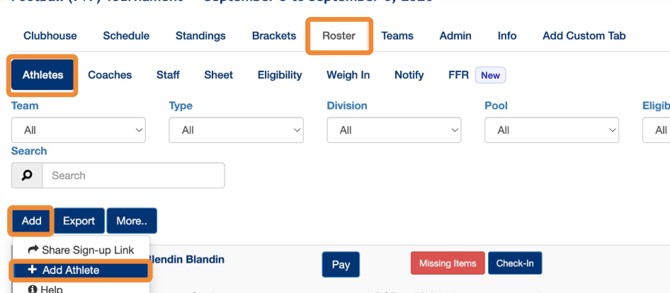
- If the athlete is not already registered, manually add the athlete to the new event.
- Open the new event in Zorts.
- Manually add the athlete to the event.
- Copy the Existing Payment ID
- In the original event, locate the athlete's payment.
- navigate to Roster > Athlete
- search the athlete's name
- click on the payment
- In the original event, locate the athlete's payment.
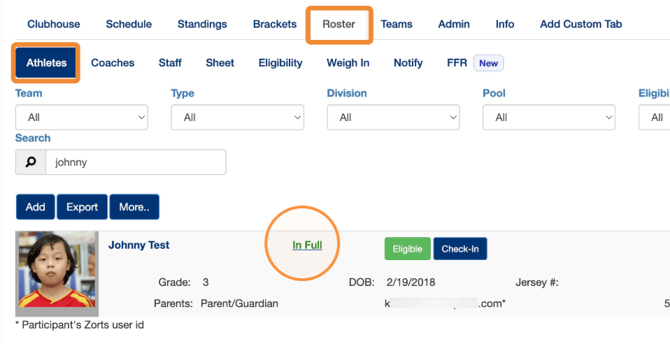
3. Copy the Payment ID before making any changes.
-
- This will allow you to reference the original payment when recording it in the new event.
- This will allow you to reference the original payment when recording it in the new event.

4. Delete the Existing Payment
-
- After copying the Payment ID, delete the team's payment from the original event in Zorts.

5. Open the Athlete Payment Area in the NEW event
-
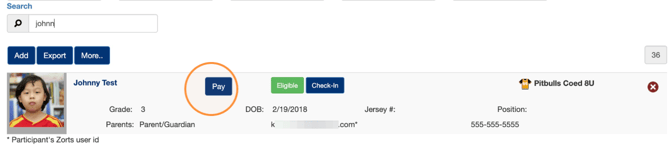
- Navigate to Roster > Athletes
- Select the Pay button next to the athlete you are recording the payment for.
6. Enter the Payment Information
-
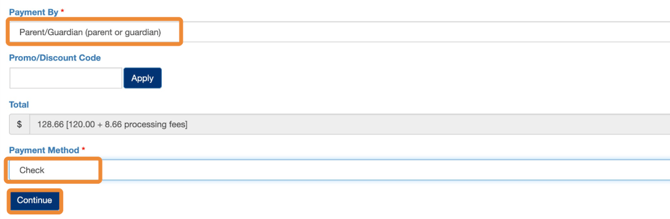
- Select the person that made the payment
- Select Check under "Payment Method"
- Click "Continue"
7. Enter Payment ID and Any Additional Notes and Save the Payment
-
- Paste the previously saved payment ID and any relevant payment notes for your records
- click "Purchase" to save.
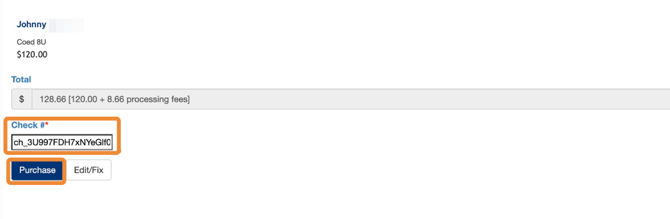
The athlete's payment will now be documented in Zorts in the NEW event as a check payment and can be referenced under the event's Admin > Revenue tab.