---
title: How to Purchase a ZortsID For Athletes
description: How to Purchase a Zorts Player Card
---

[Skip to content](https://zorts.zortssports.com/knowledge-base/how-to-purchase-a-zorts-player-card-0#main-content)

English

Show submenu for translations

![](https://zorts.zortssports.com/hs-fs/hubfs/logo.png?width=120&height=120&name=logo.png)

Open main navigation

Close main navigation

- English
  
  Show submenu for translations
- [Help](https://zorts.zortssports.com/support_ticket)

[Help](https://zorts.zortssports.com/support_ticket?hsLang=en)

 How can we help you?

- There are no suggestions because the search field is empty.

1. [Zorts Knowledge Base](https://zorts.zortssports.com/knowledge-base?hsLang=en)
2. [Participants](https://zorts.zortssports.com/knowledge-base/participants?hsLang=en)

# How to Purchase a ZortsID For Athletes

## Below are step-by-step instructions on how to purchase a ZortsID for an athlete for your upcoming event.

> ZortsIDs can only be purchased in the context of an event.

> If you are attending an event that has not implemented ZortsIDs, you will not be given the option to purchase one.

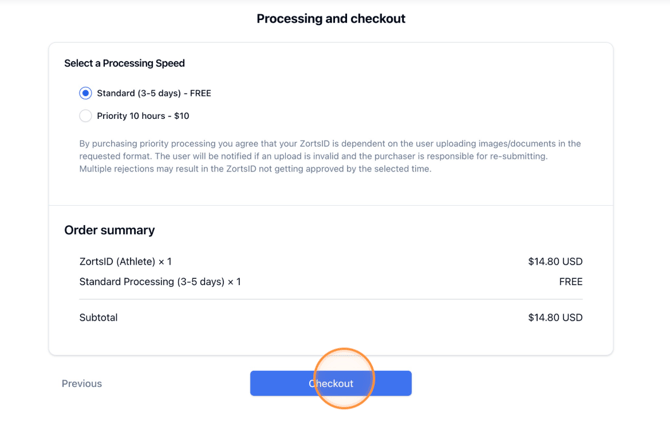
> When your purchase is complete, your ZortsID will be reviewed within 3-5 days. **If you would like your ZortsID to be reviewed sooner, you may choose to purchase an *expedited review*** for an additional $10. In this case, the ZortsID would be reviewed within 10 hours.


### Website

    1. Navigate to [http://zortssports.com](http://zortssports.com/), log into your account, and select the event you are participating in.

![](https://lh7-rt.googleusercontent.com/docsz/AD_4nXf8jeYn_zHYbxXzGB_trMMqzQbYZYpZ35xgCXurc1Ak1L28zyNteeY9h7W1lX8KFqzB4rRD55hD3okwc4df_duKJSAt10Tf2DXUt_47oK-P5j335O1TGGAlzwq9HeEPX6nwU20d0Q?key=gSg-M26tkzBqjyiG2Jn5Mw)

    2. Under the 'Eligibility' tab, click "**Purchase ZortsID $**".


**![](https://lh7-rt.googleusercontent.com/docsz/AD_4nXehrd473LDcPIrnHIM7MmuCr41Xl7s4j_99_Rex51uJnfpTacS8JVtPeMB1ZLb6LWH55JpoBTq97DVWn3hCHpjNuadN2D2y1o0VLN-6nZfCycpaaKLmFtbelcDpGf_ijvIWjrwT?key=gSg-M26tkzBqjyiG2Jn5Mw)**


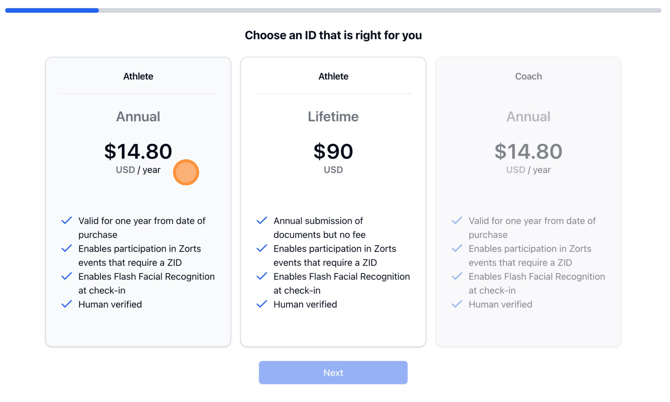
     3. Select the ZortsID type, then click "**Next**".
 

![](https://zorts.zortssports.com/hs-fs/hubfs/image-png-Jun-08-2026-05-11-13-7537-PM.png?width=670&height=402&name=image-png-Jun-08-2026-05-11-13-7537-PM.png)  


    4. CAREFULLY review the specifications to the left, then click to upload a current headshot photo of your athlete.

![](https://lh7-rt.googleusercontent.com/docsz/AD_4nXdCZlD1OLH6NAPHGfrnS_iou7WG8T93z1ry14k_yKespv2i1gPwZtfL7_yIjByyuSz5LJa7A8DahrXI6U7D7RIwbHUiI4VqNp8knR08OfFffNrUoy_wtGYyjP-GEcW0BEuO-KzeVQ?key=gSg-M26tkzBqjyiG2Jn5Mw)

    5. Once you’ve selected your photo, please zoom in to crop (if necessary) and position the face in the center of the frame. Then, click "**Save**". 

![](https://zorts.zortssports.com/hs-fs/hubfs/image-png-Aug-25-2026-07-07-40-5074-PM.png?width=624&height=387&name=image-png-Aug-25-2026-07-07-40-5074-PM.png)  
  

      6. Click "**Next**".

![](https://zorts.zortssports.com/hs-fs/hubfs/image-png-Aug-25-2026-07-08-40-6142-PM.png?width=624&height=387&name=image-png-Aug-25-2026-07-08-40-6142-PM.png)


    7. Select a **Document Type.**


![](https://lh7-rt.googleusercontent.com/docsz/AD_4nXchFKcz3X4LkQbgNnmXH6eAV4q2TmLlC7C_p11y4tM8cme4GhTIVCawv6YWxr0Oicrc1D1IXYtFBIfOsHUsnQSQRHlmSNj-TCJSq_6vpXV7XKjqGDc-iT8qec3WsUqoVcrjpO7neA?key=gSg-M26tkzBqjyiG2Jn5Mw)


     8. Click inside the square to the right to upload your document, then click "**Next**".

![](https://lh7-rt.googleusercontent.com/docsz/AD_4nXcQVUT_h7CJU7OMhg-zsgXqboVFDSeb3mXf_rhl-ElD4sek-82V0TD3yX6kRJpH2P3BamTFz4sByePI3u_R_N3SzCSZKu6vGslsVcZxl3BwMgMoSZ0y5WdddbnIaH-rmZFnXKvfLw?key=gSg-M26tkzBqjyiG2Jn5Mw)


     9. Enter the athlete’s information, then click "**Next**".

![](https://zorts.zortssports.com/hs-fs/hubfs/image-png-Aug-25-2026-07-09-37-0850-PM.png?width=624&height=387&name=image-png-Aug-25-2026-07-09-37-0850-PM.png)


    10. Enter the appropriate contact information, then click "**Next**".


![](https://zorts.zortssports.com/hs-fs/hubfs/image-png-Aug-25-2026-07-10-17-9144-PM.png?width=624&height=387&name=image-png-Aug-25-2026-07-10-17-9144-PM.png)  
 

     11. Review your information and ensure that everything is correct and the participant's photo is to your liking. If not, click "**Previous**" to make corrections.

![](https://zorts.zortssports.com/hs-fs/hubfs/image-png-Aug-25-2026-07-11-06-0163-PM.png?width=624&height=387&name=image-png-Aug-25-2026-07-11-06-0163-PM.png)


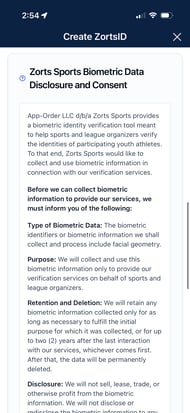
    12. Review and Consent to the "Biometric Data Disclosure and Consent" agreement


![](https://zorts.zortssports.com/hs-fs/hubfs/image-png-Aug-25-2026-07-11-59-6662-PM.png?width=624&height=387&name=image-png-Aug-25-2026-07-11-59-6662-PM.png)


    13. Enter your full name, check the box to agree to the terms, and click "**Next**".


![](https://zorts.zortssports.com/hs-fs/hubfs/image-png-Aug-25-2026-07-12-40-3115-PM.png?width=670&height=416&name=image-png-Aug-25-2026-07-12-40-3115-PM.png)  


    14. Choose your processing speed.

        a. Click "**Checkout**".
![](https://zorts.zortssports.com/hs-fs/hubfs/image-png-Jun-08-2026-05-24-15-4676-PM.png?width=670&height=425&name=image-png-Jun-08-2026-05-24-15-4676-PM.png)

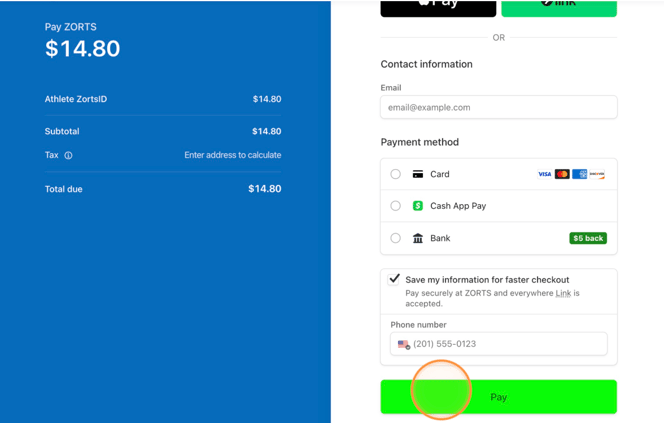
      14. Enter your payment information and click "**Pay**" to view your receipt.
 ![](https://zorts.zortssports.com/hs-fs/hubfs/image-png-Jun-08-2026-05-25-03-9014-PM.png?width=664&height=423&name=image-png-Jun-08-2026-05-25-03-9014-PM.png)


### **iPhone**

    1. After logging into your Zorts account on the app, and selecting the event you will be attending, you will be given a message stating that you have "Missing Items".

          a. Click "**Fix Now**".

                i. If you do not get the "Missing Items" message, click "**Eligibility**" on the upper right hand side.

    2.  Click "**link athlete ZortsID**".

 ![](https://zorts.zortssports.com/hs-fs/hubfs/image-png-Aug-27-2026-06-13-36-3939-PM.png?width=190&height=413&name=image-png-Aug-27-2026-06-13-36-3939-PM.png)   ![](https://zorts.zortssports.com/hs-fs/hubfs/image-png-Aug-27-2026-06-14-20-9964-PM.png?width=190&height=413&name=image-png-Aug-27-2026-06-14-20-9964-PM.png)


    3. Click "**Purchase Athlete**".

    4. Choose your ZortsID type   
        a. Click "**Next**".


 ![](https://zorts.zortssports.com/hs-fs/hubfs/image-png-Aug-27-2026-06-15-27-4349-PM.png?width=190&height=413&name=image-png-Aug-27-2026-06-15-27-4349-PM.png)    ![](https://zorts.zortssports.com/hs-fs/hubfs/image-png-Aug-27-2026-06-15-37-7131-PM.png?width=190&height=413&name=image-png-Aug-27-2026-06-15-37-7131-PM.png)   ![](https://zorts.zortssports.com/hs-fs/hubfs/image-png-Aug-27-2026-06-15-56-1336-PM.png?width=190&height=413&name=image-png-Aug-27-2026-06-15-56-1336-PM.png)


    5. Click to upload an acceptable headshot photo, following the listed guidelines.

    6. Crop and position your photo, if necessary, to ensure that it shows a clear view of the participant from the shoulders up **only**.

        a. Click "**Save**".

        b. Click "**Next**"


![](https://zorts.zortssports.com/hs-fs/hubfs/image-png-Aug-27-2026-06-16-51-3413-PM.png?width=190&height=413&name=image-png-Aug-27-2026-06-16-51-3413-PM.png)   ![](https://zorts.zortssports.com/hs-fs/hubfs/image-png-Aug-27-2026-06-17-23-3138-PM.png?width=190&height=413&name=image-png-Aug-27-2026-06-17-23-3138-PM.png)   


    6. Select a **Document Type**.

    7. Click to upload a document, following the listed guidelines.

        a. Click "**Next**".


![](https://zorts.zortssports.com/hs-fs/hubfs/image-png-Aug-27-2026-06-19-52-1763-PM.png?width=190&height=413&name=image-png-Aug-27-2026-06-19-52-1763-PM.png)   ![](https://zorts.zortssports.com/hs-fs/hubfs/image-png-Aug-27-2026-06-20-06-3819-PM.png?width=190&height=413&name=image-png-Aug-27-2026-06-20-06-3819-PM.png)


    8. Enter athlete information.

         a. Click "**Next**".  
     9. Enter contact information.   
         a. Click "**Next**".


 ![](https://zorts.zortssports.com/hs-fs/hubfs/image-png-Aug-27-2026-06-21-10-3668-PM.png?width=190&height=413&name=image-png-Aug-27-2026-06-21-10-3668-PM.png)    ![](https://zorts.zortssports.com/hs-fs/hubfs/image-png-Aug-27-2026-06-21-22-0565-PM.png?width=190&height=413&name=image-png-Aug-27-2026-06-21-22-0565-PM.png)

    10. Review your information

    11. Scroll down and review the Biometric Data Disclosure and Consentform


![](https://zorts.zortssports.com/hs-fs/hubfs/image-png-Aug-20-2026-10-06-05-2332-PM.png?width=190&height=413&name=image-png-Aug-20-2026-10-06-05-2332-PM.png)   ![](https://zorts.zortssports.com/hs-fs/hubfs/image-png-Aug-20-2026-10-06-21-2418-PM.png?width=190&height=413&name=image-png-Aug-20-2026-10-06-21-2418-PM.png)


     12. Enter your full name, check the box to agree to the terms, and click "**Next**".

     13. Choose your processing speed.

            a. Click "**Checkout**" to enter your payment information and complete purchase.


 ![](https://zorts.zortssports.com/hs-fs/hubfs/image-png-Aug-27-2026-06-22-40-6221-PM.png?width=190&height=413&name=image-png-Aug-27-2026-06-22-40-6221-PM.png)   ![](https://zorts.zortssports.com/hs-fs/hubfs/image-png-Aug-27-2026-06-22-58-7570-PM.png?width=190&height=413&name=image-png-Aug-27-2026-06-22-58-7570-PM.png)


### Android

    1. After logging into your Zorts account on the app, and selecting the event you will be attending, you will be given a message stating that you have "Missing Items".

        a. Click "**Fix Now**".

             i. If you do not get the "Missing Items" message, click "**Eligibility**" on the upper right hand side.

    2. Clink "**Link Athlete Card**".


 ![](https://zorts.zortssports.com/hs-fs/hubfs/image-png-Aug-31-2026-06-54-45-1343-PM.png?width=190&height=412&name=image-png-Aug-31-2026-06-54-45-1343-PM.png)   ![](https://zorts.zortssports.com/hs-fs/hubfs/image-png-Aug-31-2026-06-55-01-3452-PM.png?width=190&height=412&name=image-png-Aug-31-2026-06-55-01-3452-PM.png)


    3. Click "**Purchase ZortsID**".

    4. Choose your ZortsID type   
         a. Click "**Next**".


![](https://zorts.zortssports.com/hs-fs/hubfs/image-png-Aug-31-2026-07-00-10-2448-PM.png?width=190&height=412&name=image-png-Aug-31-2026-07-00-10-2448-PM.png)  ![](https://zorts.zortssports.com/hs-fs/hubfs/image-png-Aug-31-2026-07-06-02-5421-PM.png?width=190&height=412&name=image-png-Aug-31-2026-07-06-02-5421-PM.png)   


    5. Click to upload an acceptable headshot photo, following the listed guidelines.

    6. Crop and position your photo, if necessary, to ensure that it shows a clear view of the participant from the shoulders up **only**.

        a. Click "**Save**".

        b. Click "**Next**"


![](https://zorts.zortssports.com/hs-fs/hubfs/image-png-Aug-31-2026-07-06-28-6053-PM.png?width=190&height=412&name=image-png-Aug-31-2026-07-06-28-6053-PM.png)   ![](https://zorts.zortssports.com/hs-fs/hubfs/image-png-Aug-31-2026-07-07-52-6522-PM.png?width=190&height=412&name=image-png-Aug-31-2026-07-07-52-6522-PM.png) 


    6. Select a **Document Type**.

    7. Click to upload a document, following the listed guidelines.

        a. Click "**Next**".


![](https://zorts.zortssports.com/hs-fs/hubfs/image-png-Aug-31-2026-07-10-04-6075-PM.png?width=190&height=412&name=image-png-Aug-31-2026-07-10-04-6075-PM.png)   ![](https://zorts.zortssports.com/hs-fs/hubfs/image-png-Aug-31-2026-07-10-30-1568-PM.png?width=190&height=412&name=image-png-Aug-31-2026-07-10-30-1568-PM.png)


    8. Enter athlete information.

        a. Click "**Next**".  
    9. Enter contact information.  
        a. Click "**Next**".


![](https://zorts.zortssports.com/hs-fs/hubfs/image-png-Aug-31-2026-07-10-41-2426-PM.png?width=190&height=412&name=image-png-Aug-31-2026-07-10-41-2426-PM.png)   ![](https://zorts.zortssports.com/hs-fs/hubfs/image-png-Aug-31-2026-07-10-53-5319-PM.png?width=190&height=412&name=image-png-Aug-31-2026-07-10-53-5319-PM.png)

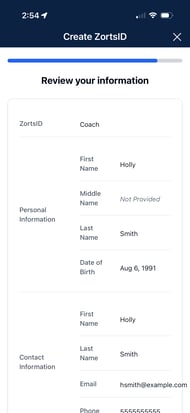
    10. Review your information

    11. Scroll down and review the Biometric Data Disclosure and Consentform
 

![](https://zorts.zortssports.com/hs-fs/hubfs/image-png-Aug-31-2026-07-11-41-4526-PM.png?width=190&height=412&name=image-png-Aug-31-2026-07-11-41-4526-PM.png)   ![](https://zorts.zortssports.com/hs-fs/hubfs/image-png-Aug-31-2026-07-12-39-1079-PM.png?width=190&height=412&name=image-png-Aug-31-2026-07-12-39-1079-PM.png)


     12. Enter your full name, check the box to agree to the terms, and click "**Next**".

     13. Choose your processing speed.

     14. Click "**Checkout**" to enter your payment information and complete purchase.


![](https://zorts.zortssports.com/hs-fs/hubfs/image-png-Aug-31-2026-07-13-44-9070-PM.png?width=190&height=412&name=image-png-Aug-31-2026-07-13-44-9070-PM.png)   ![](https://zorts.zortssports.com/hs-fs/hubfs/image-png-Aug-31-2026-07-13-57-8500-PM.png?width=190&height=412&name=image-png-Aug-31-2026-07-13-57-8500-PM.png)   ![](https://zorts.zortssports.com/hs-fs/hubfs/image-png-Aug-31-2026-07-14-07-0506-PM.png?width=190&height=412&name=image-png-Aug-31-2026-07-14-07-0506-PM.png)


- [Coaches](https://zorts.zortssports.com/knowledge-base/coaches?hsLang=en)
- [Participants](https://zorts.zortssports.com/knowledge-base/participants?hsLang=en)
- [Event Administrators](https://zorts.zortssports.com/knowledge-base/event-administrators?hsLang=en#main-content)

    - [Payment Management](https://zorts.zortssports.com/knowledge-base/event-administrators?hsLang=en#payment-management)
- [Coaches and Event Administrators](https://zorts.zortssports.com/knowledge-base/coaches-and-event-administrators?hsLang=en)
- [STRIPE Training](https://zorts.zortssports.com/knowledge-base/stripe-training?hsLang=en)

[![](https://zorts.zortssports.com/hs-fs/hubfs/logo.png?width=120&height=120&name=logo.png)](http://zortssports.com)

<https://www.facebook.com/zortssportsapp/> <https://twitter.com/ZortsSports> <https://www.instagram.com/zorts_sports/> <https://www.youtube.com/channel/UCkYuWAwd89ZtlW_CkkjR1lA>

Copyright © 2025, Zorts