ZortsIDs can only be purchased in the context of an event.
If you are attending an event that does not require ZortsIDs, you will not be given the option to purchase a one.
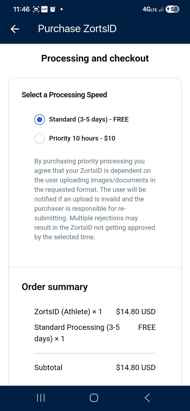
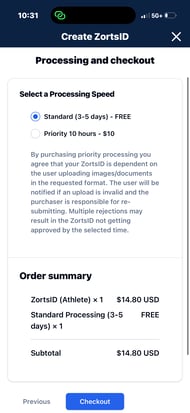
When your purchase is complete, your ZortsID will be reviewed within 3-5 days. If you would like your ZortsID to be reviewed sooner, you may choose to purchase an expedited review for an additional $10. In this case, the card would be reviewed within 10 hours.
Website

2. Under the 'Eligibility' tab, click 'Purchase ZortsID $'

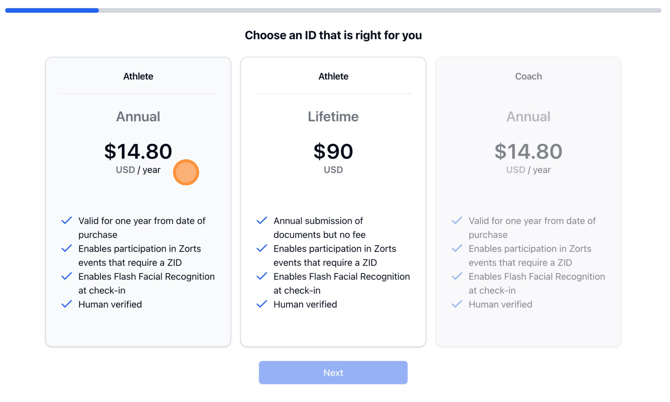
3. Select the ZortsID type, then click ‘Next’

5. Once you’ve selected your photo, please zoom in to crop (if necessary) and position the face in the center of the frame. Then, click save.

6.Click ‘Next’

7. Select a ‘Document Type'

8. Click inside the square to the right to upload your document, then click ‘Next’.

9. Enter the athlete’s information, then click ‘Next’.

10. Enter the appropriate contact information, then click ‘Next’.

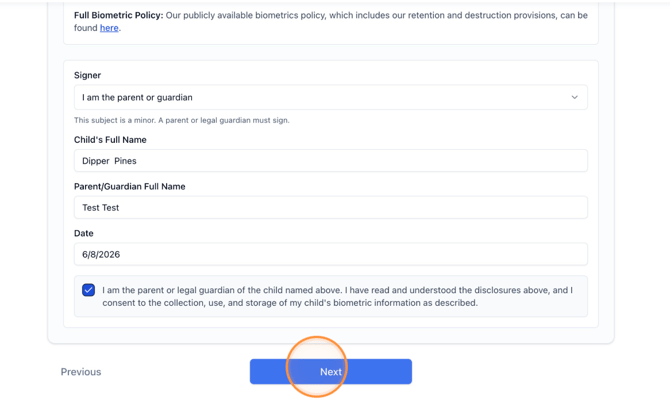
11. Review your information and ensure that everything is correct and the participant's photo is to your liking. If it is, click ‘Next’. If not, click ‘Previous’ to make corrections.

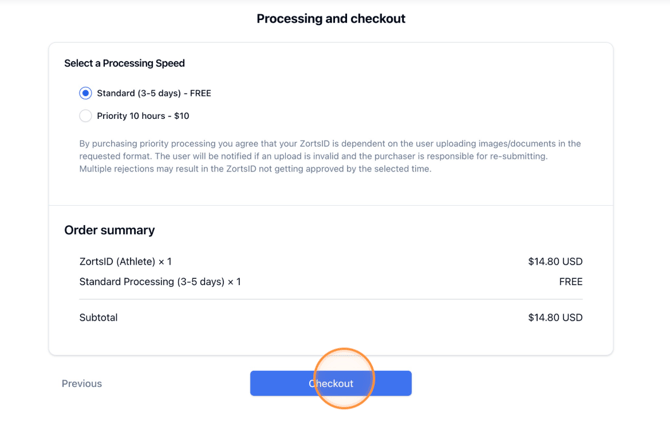
13. Click ‘Checkout’

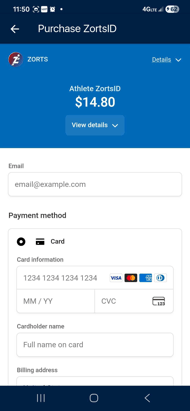
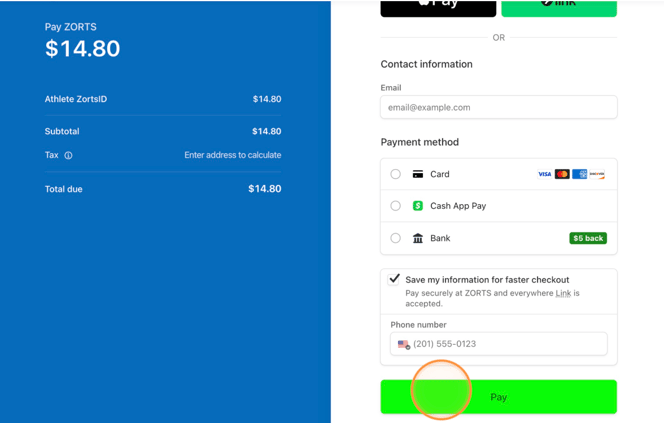
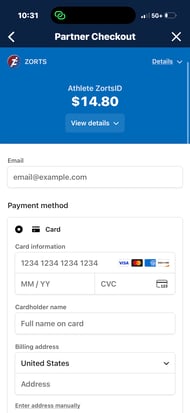
14. Enter your payment information and click ‘Pay’ to complete the transaction
iPhone
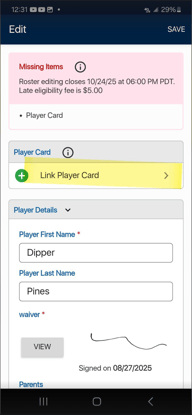
1. After logging into your Zorts account on the app, and selecting the event you will be attending, you will be given a message stating that you have 'Missing Items'.
a. Click 'Fix Now'.
b. If the missing items message does not appear click 'Eligibility' in the upper right hand corner.
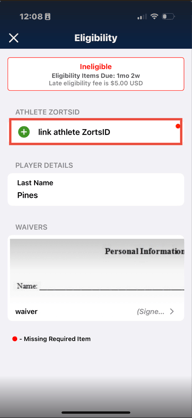
2. Clink 'link player/participant card'.
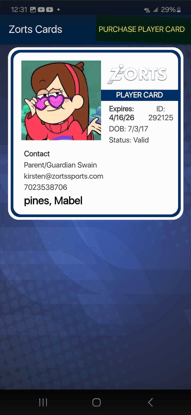
3. Click 'Purchase Player/Participant Card'

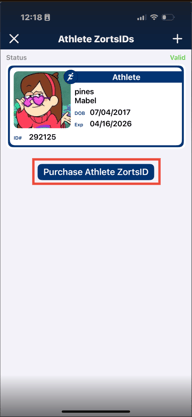
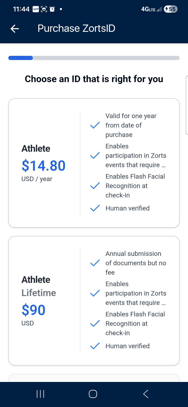
4. Select the 'Card Type'
a. Annual - must pay to renew every year when card expires.
b. Lifetime - never have to pay to renew again however, still required to renew photo and documents annually.
5. CAREFULLY review the specifications to the left, then click to upload a ‘Current Headshot’ photo of your athlete.
6. Once you’ve selected your photo, please zoom in to crop (if necessary) and position the face in the center of the frame. Then, click save.



7. Select a ‘Document Type'
8. Click inside the square to the right to upload your document, then click ‘Next’.
9. Enter the athlete’s information, then click ‘Next’.


10. Enter the appropriate contact information, then click ‘Next’.
11. Review your information and ensure that everything is correct and the participant's photo is to your liking.
12. If the info is correct, click ‘Next’. If not, click ‘Previous’ to make corrections.


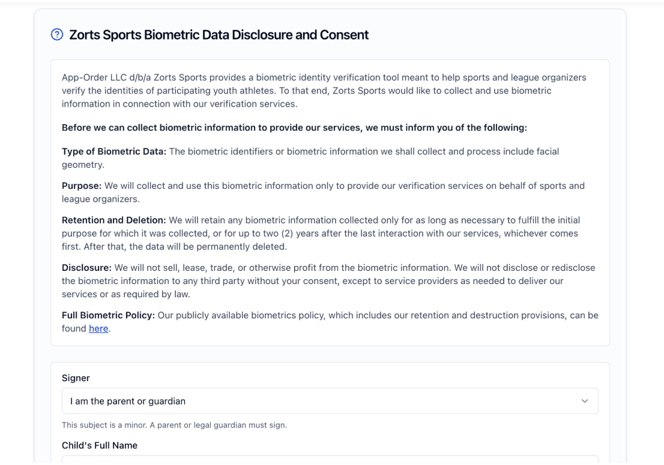
13. Review and Consent to the "Biometric Data Disclosure and Consent" agreement
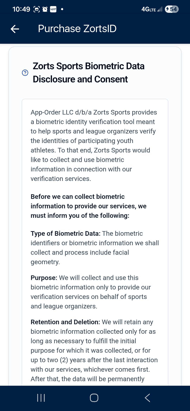
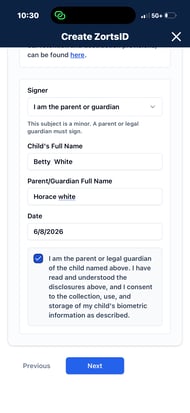
15. Enter your payment information and click ‘Pay’ to complete the transaction
Android
a. Annual - must pay to renew every year when card expires.
b. Lifetime - never have to pay to renew again however, still required to renew photo and documents annually.
5. CAREFULLY review the specifications to the left, then click to upload a ‘Current Headshot’ photo of your athlete.
6. Once you’ve selected your photo, please zoom in to crop (if necessary) and position the face in the center of the frame. Then, click save.
7. Select a ‘Document Type'
8. Click inside the square to the right to upload your document, then click ‘Next’.
9. Enter the athlete’s information, then click ‘Next’.
10. Enter the appropriate contact information, then click ‘Next’.
11. Review your information and ensure that everything is correct and the participant's photo is to your liking.
12. If the info is correct, click ‘Next’. If not, click ‘Previous’ to make corrections.
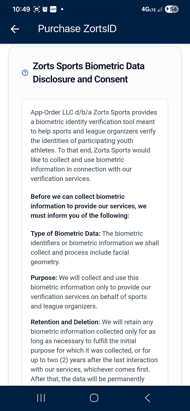
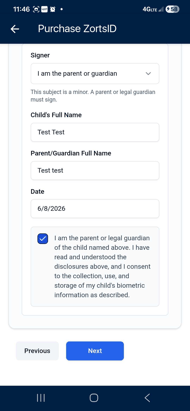
13. Review and Consent to the "Biometric Data Disclosure and Consent" agreement
15. Enter your payment information and click ‘Pay’ to complete the transaction