---
title: How to Share Coach Sign-up Links
description: How to Share Coach Sign-up Links
---
[Skip to content](https://zorts.zortssports.com/knowledge-base/how-to-share-coach-sign-up-links#main-content)
English
Show submenu for translations

Open main navigation
Close main navigation
- English
Show submenu for translations
- [Help](https://zorts.zortssports.com/support_ticket)
[Help](https://zorts.zortssports.com/support_ticket?hsLang=en)
How can we help you?
- There are no suggestions because the search field is empty.
1. [Zorts Knowledge Base](https://zorts.zortssports.com/knowledge-base?hsLang=en)
2. [Coaches](https://zorts.zortssports.com/knowledge-base/coaches?hsLang=en)
# How to Share Coach Sign-up Links
## Below are step-by-step instruction on how to send a coach sign up link to allow a coach to register for an event from the Zorts Website, iPhone App, and Android app.
### Web
1. Select the ‘Roster’ tab, then the ‘Coaches' tab.
a. Click ‘Add’.
b. Select ‘Share Sign-up Link’
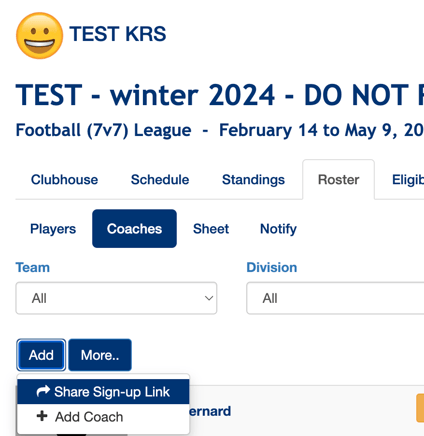
2. Ensure that the correct category of recipients (Coaches) is selected
**a. Ensure that you have the correct DIVISION/TEAM selected under the 'Team' drop down list before copying the link.**
**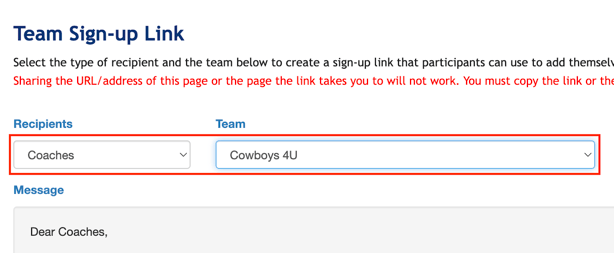**
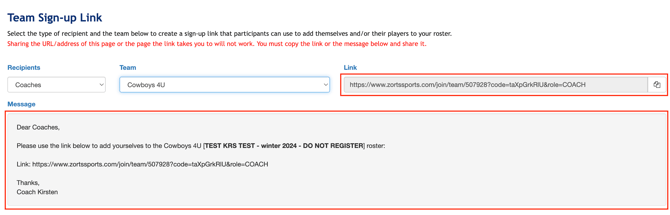
3. Copy the link provided or copy the entire message, and paste it in a message to your selected recipients.
### iPhone
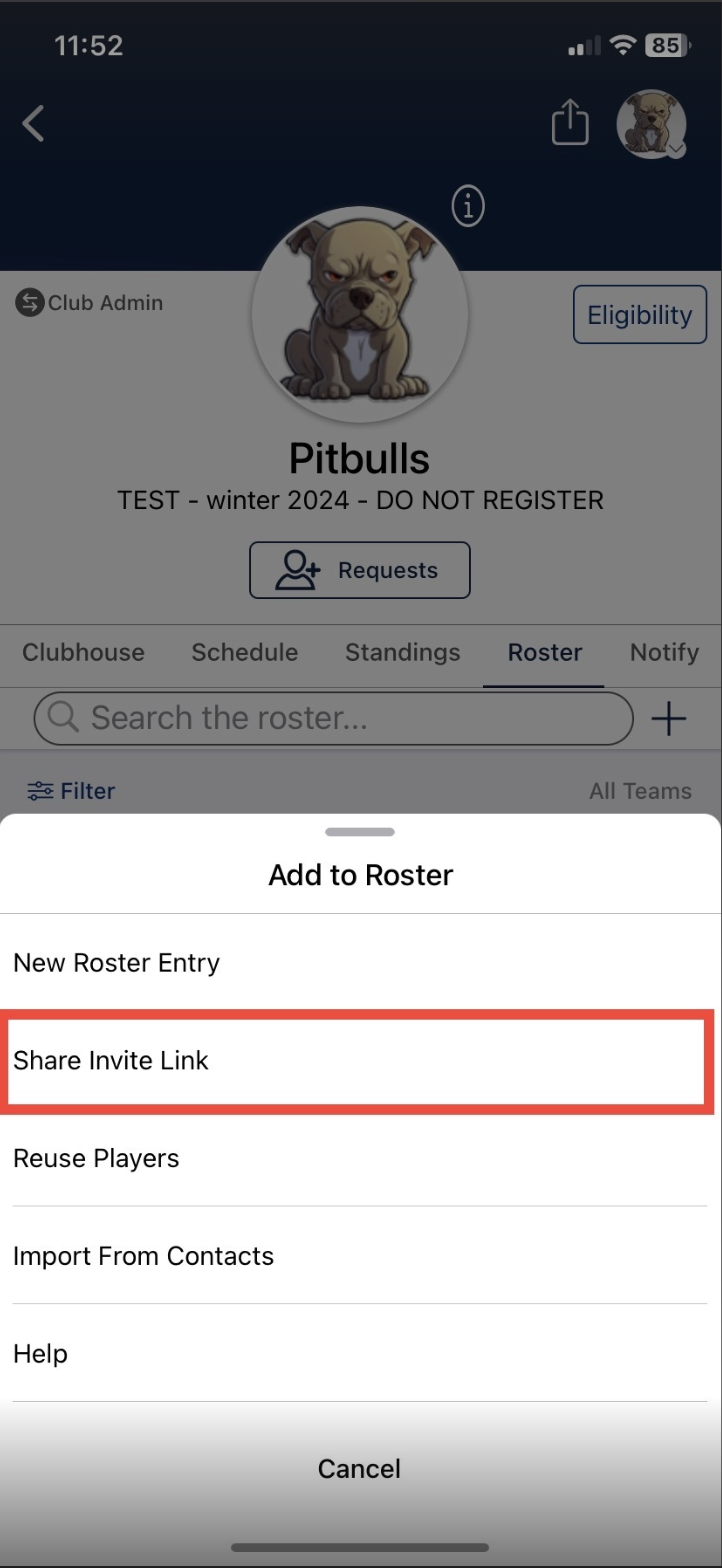
1. From your event, click on the ‘Roster’ tab, then select the plus ‘+’ sign,
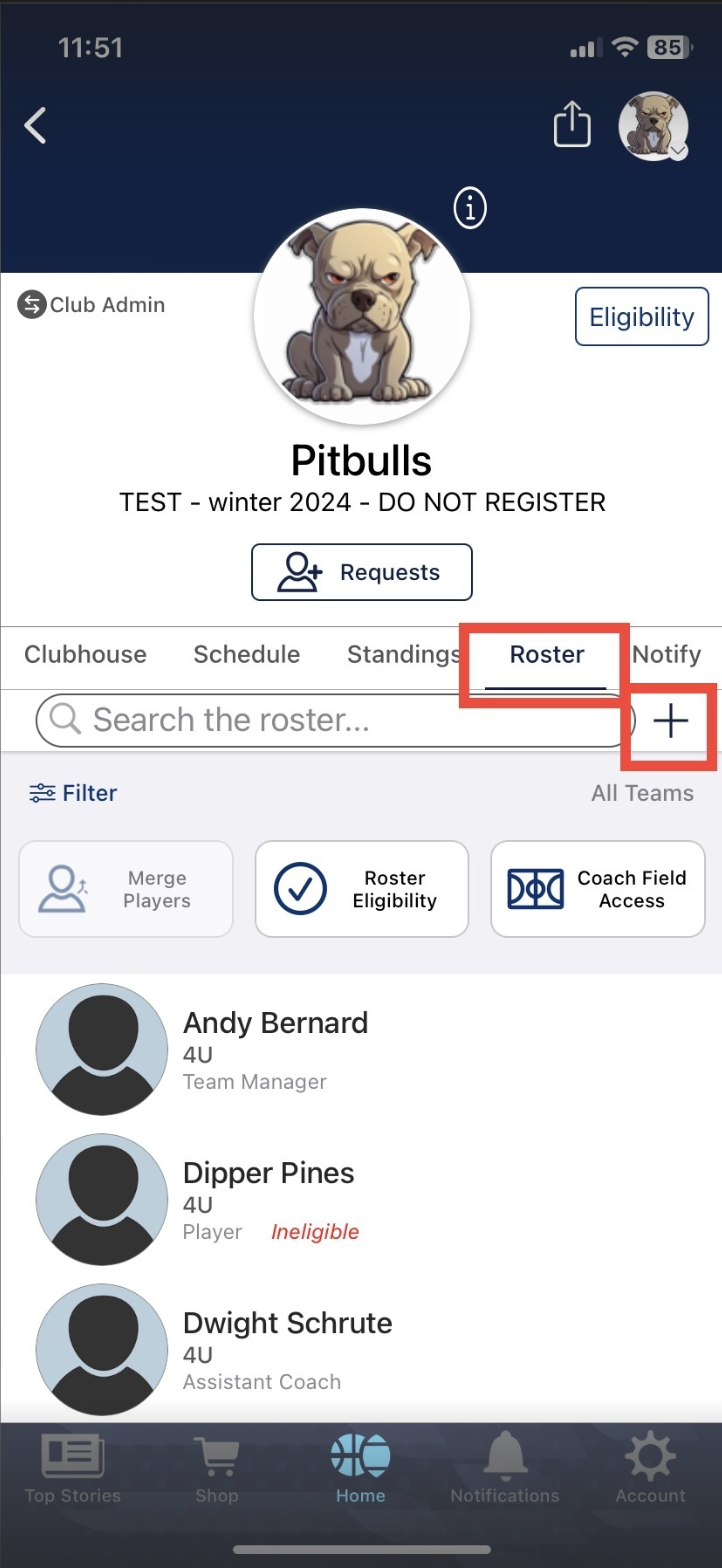
2. Select 'Share Invite Link'.
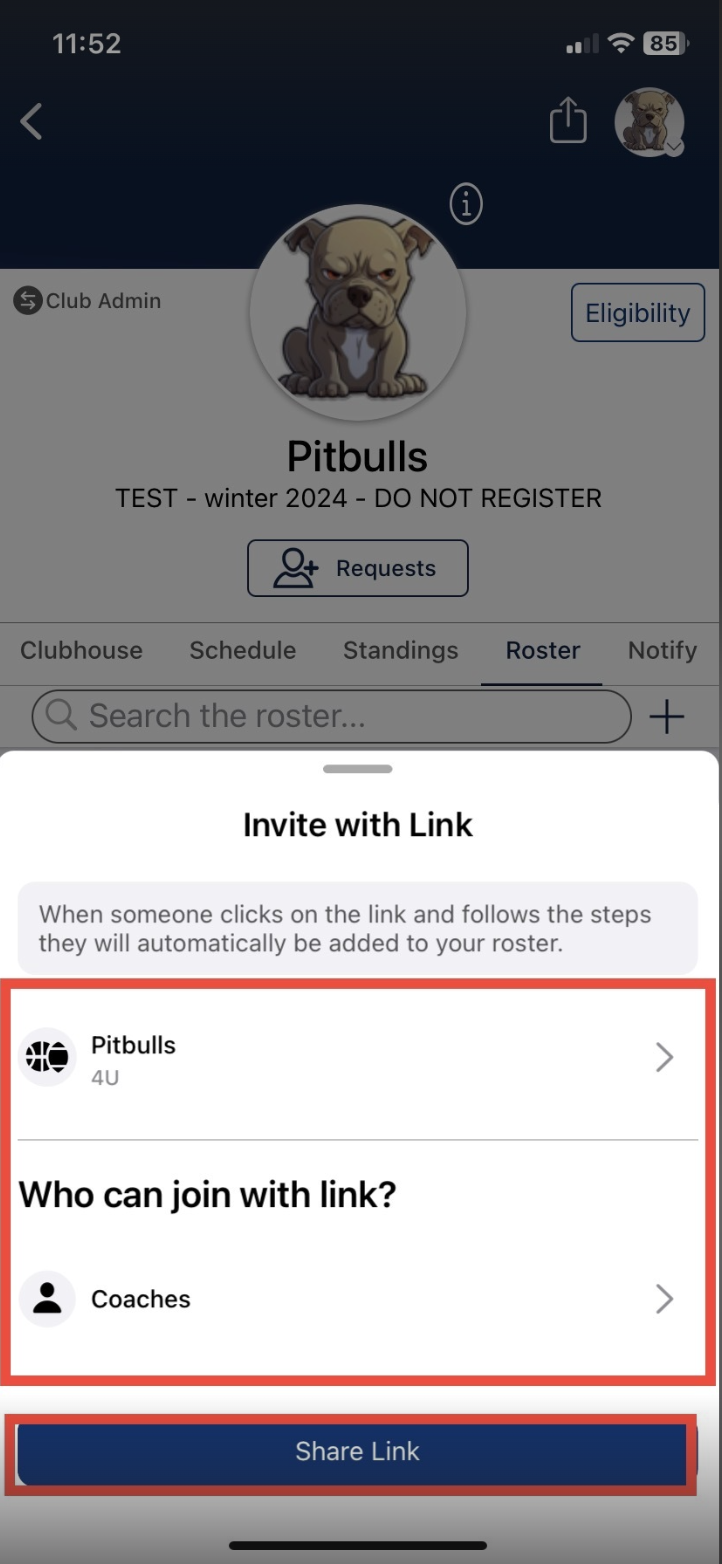
3. Select the team/division that you'd like to add to and the type of recipient you are sharing with (Coaches).
a. Click 'Share Link'
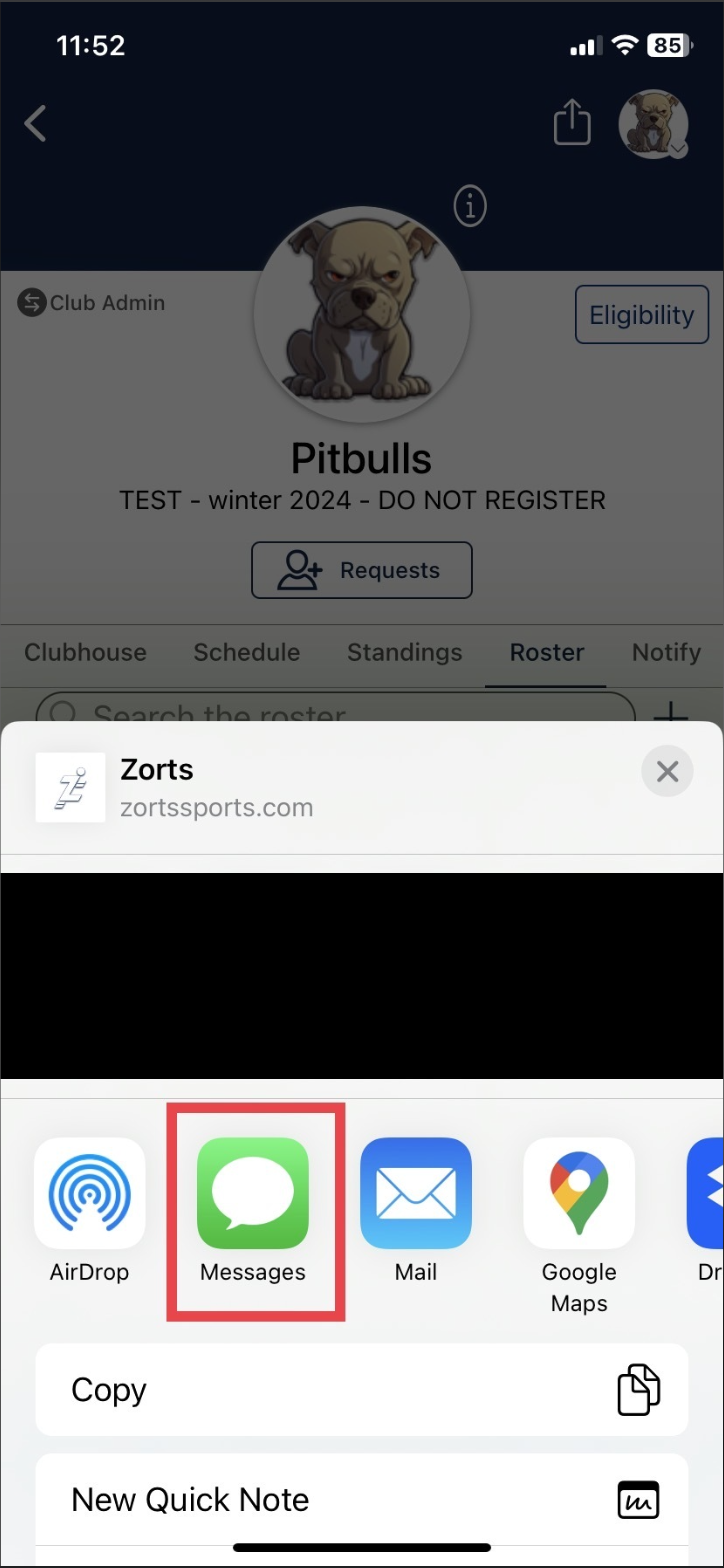
4. Select your method of sharing, such as email or text message, or copy and paste the link to whichever delivery method your choose.
### Android
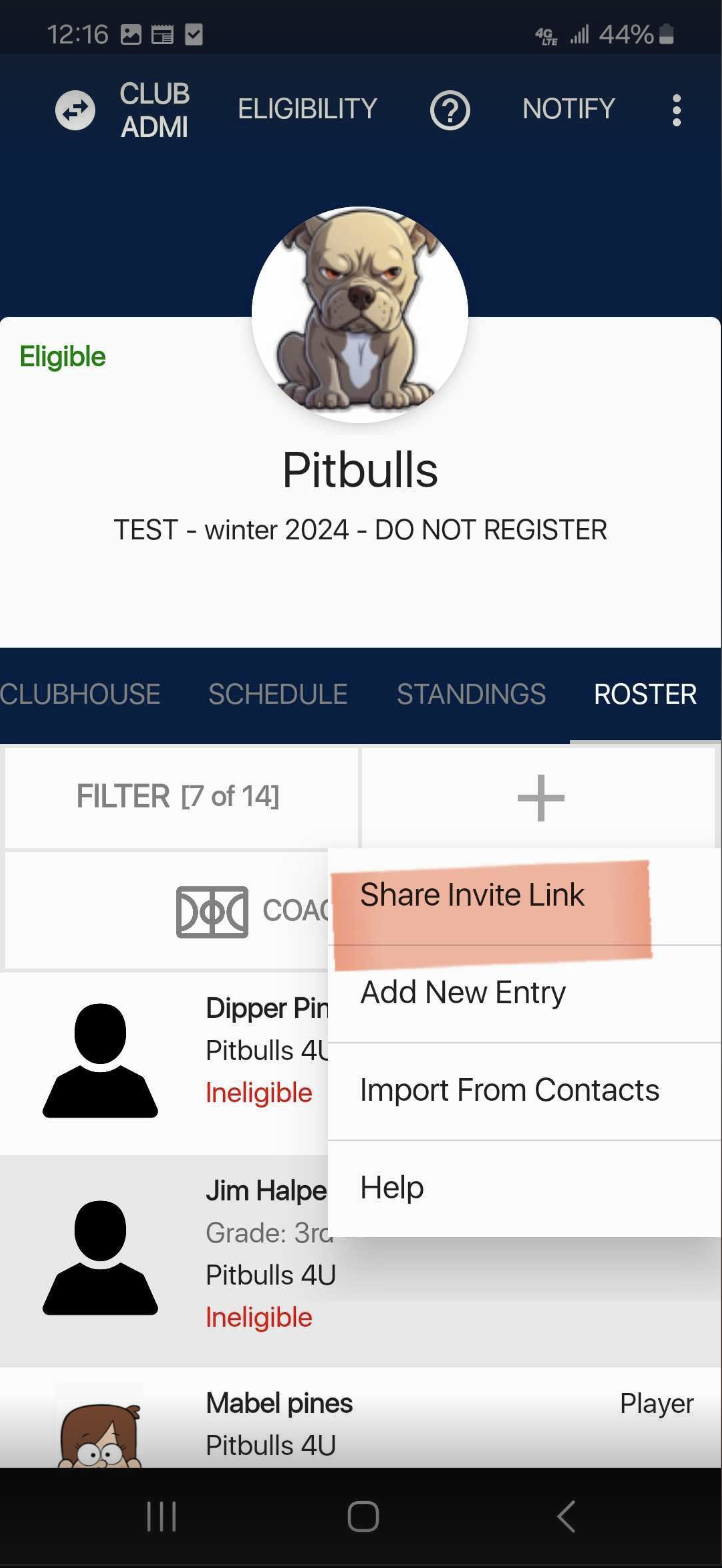
1. From your event, click the ‘Roster’ tab.
a. Click on the plus (+) sign button

2. Select ‘Share Invite Link’.
4. Select your choice of team/division and recipient for the sign-up link (Coaches).
a. Click ‘Share Link’.
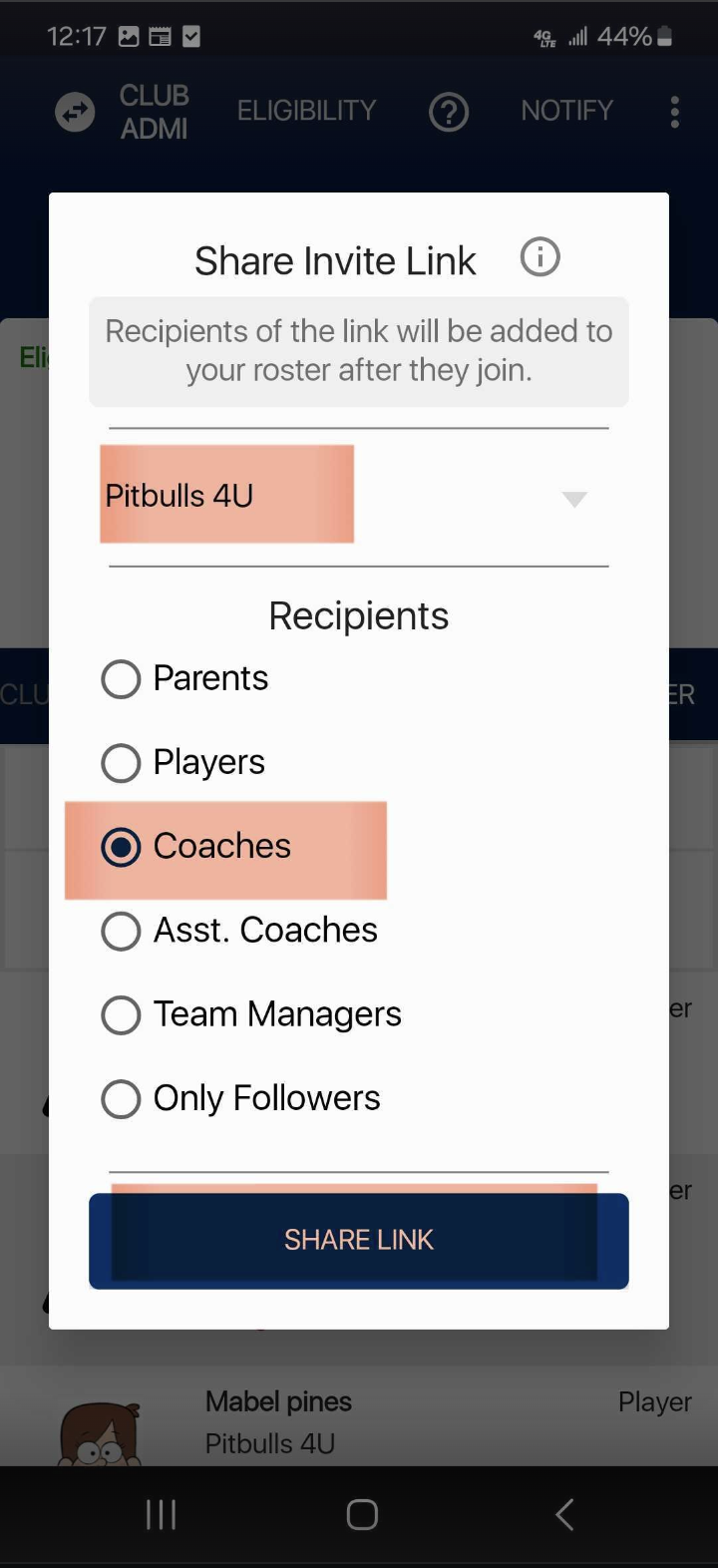
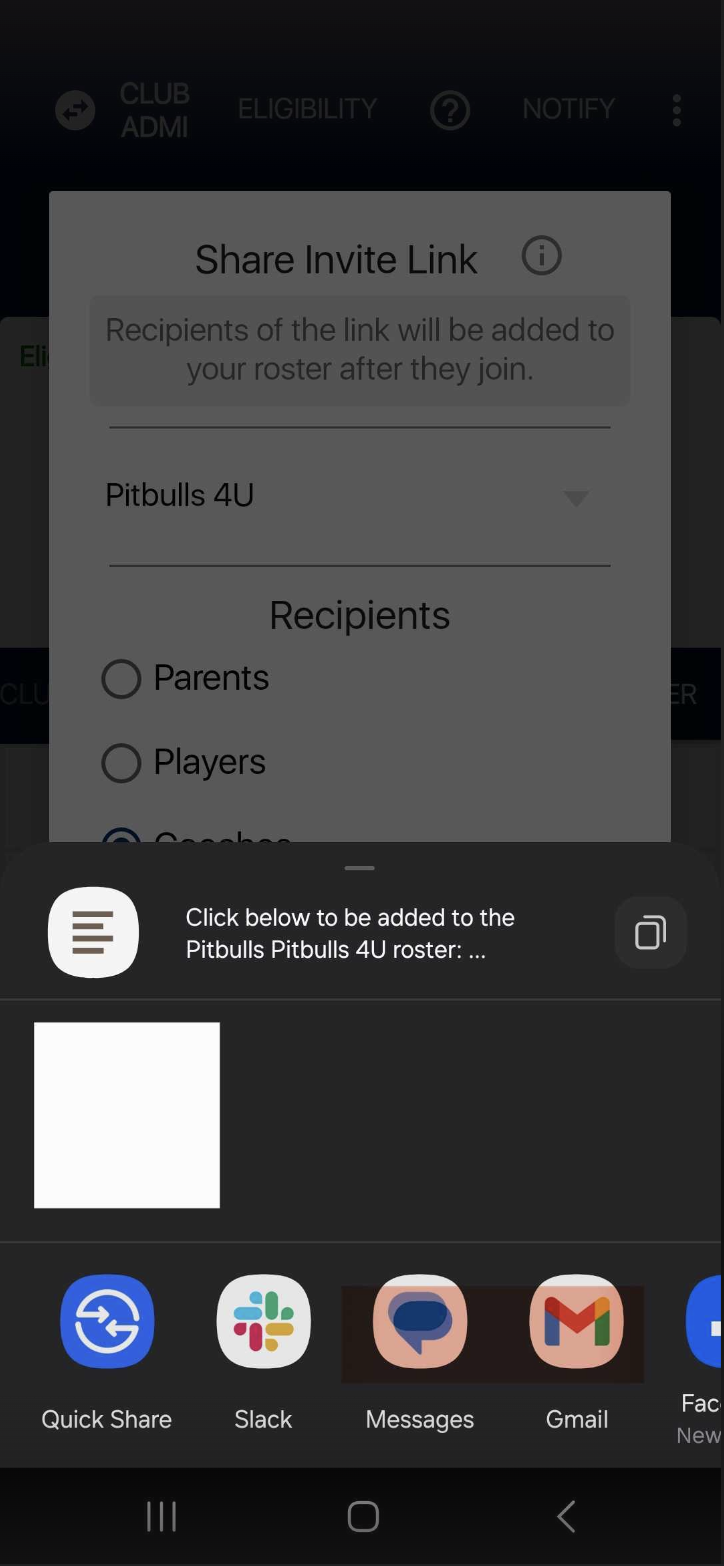
5. Select your method of sharing, such as email or text message, or copy and paste the link to whichever delivery method your choose.
- [Coaches](https://zorts.zortssports.com/knowledge-base/coaches?hsLang=en)
- [Participants](https://zorts.zortssports.com/knowledge-base/participants?hsLang=en)
- [Event Administrators](https://zorts.zortssports.com/knowledge-base/event-administrators?hsLang=en#main-content)
- [Payment Management](https://zorts.zortssports.com/knowledge-base/event-administrators?hsLang=en#payment-management)
- [Coaches and Event Administrators](https://zorts.zortssports.com/knowledge-base/coaches-and-event-administrators?hsLang=en)
- [STRIPE Training](https://zorts.zortssports.com/knowledge-base/stripe-training?hsLang=en)
[](http://zortssports.com)
Copyright © 2025, Zorts