---
title: How to View and Send Notifications as a Coach or Event Administrator
description: How to View and Send Notifications
---
[Skip to content](https://zorts.zortssports.com/knowledge-base/how-to-view-and-send-notifications#main-content)
English
Show submenu for translations

Open main navigation
Close main navigation
- English
Show submenu for translations
- [Help](https://zorts.zortssports.com/support_ticket)
[Help](https://zorts.zortssports.com/support_ticket?hsLang=en)
How can we help you?
- There are no suggestions because the search field is empty.
1. [Zorts Knowledge Base](https://zorts.zortssports.com/knowledge-base?hsLang=en)
2. [Coaches and Event Administrators](https://zorts.zortssports.com/knowledge-base/coaches-and-event-administrators?hsLang=en)
# How to View and Send Notifications as a Coach or Event Administrator
## Below are step-by-step instructions on how to view sent notifications and how to send new notifications to anyone on your roster through the Zorts website.
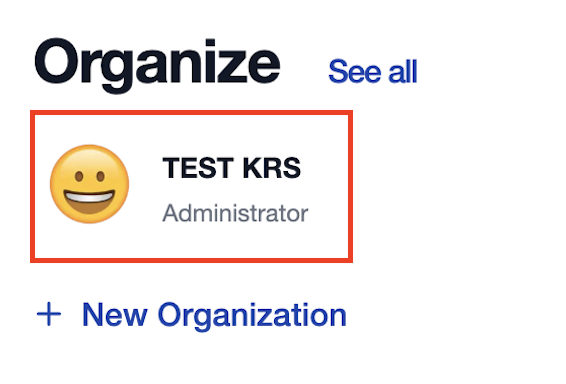
1. After logging into your account, if you are an admin click on your organization,
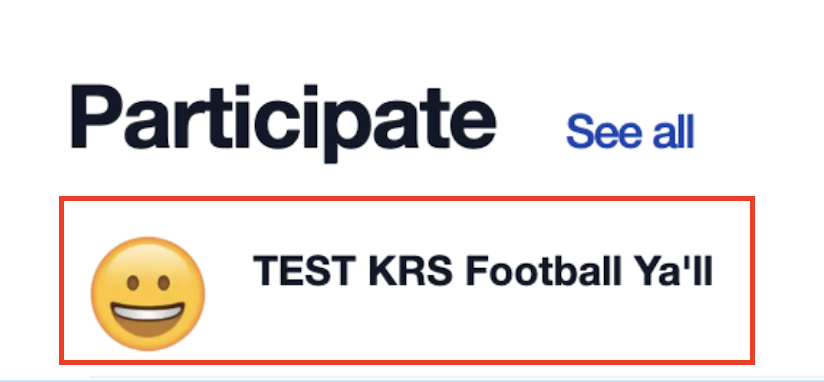
If you are a coach or club admin click on the event you are participating in.
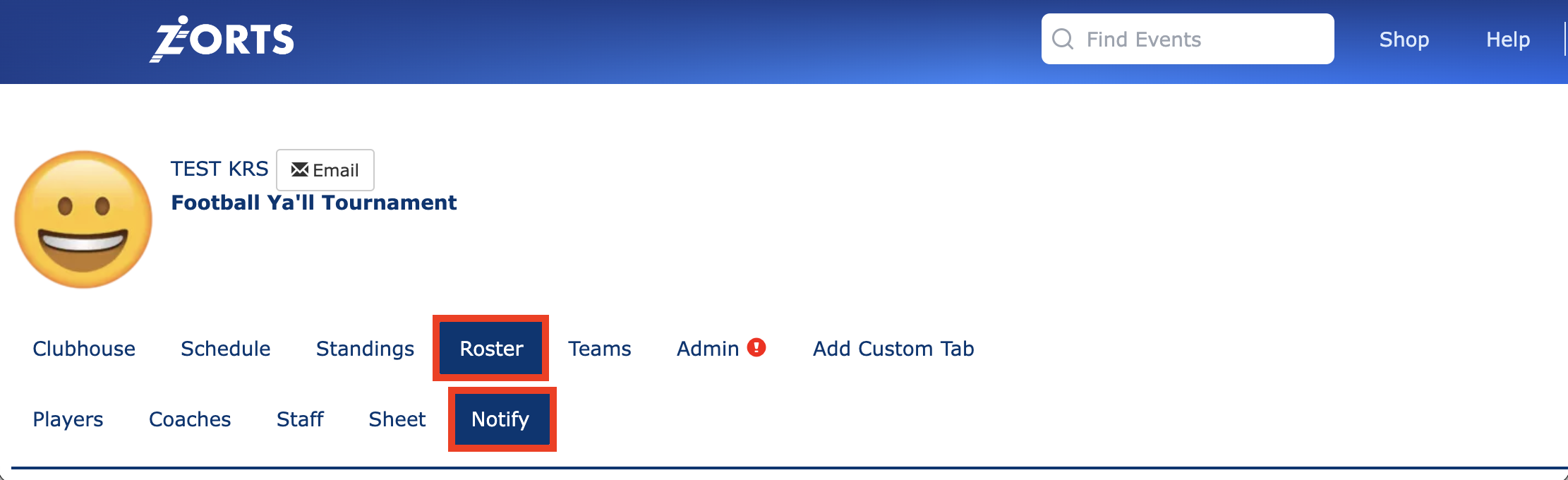
2. Select the 'Roster' \> 'Notify'.
3. To view past notifications sent, click the 'Sent' button in the top right corner.
4. To send a message, select the type of message you'd like to send, the divisions you'd like to send it to, the specific recipients, and the email address you would like to relay the message from. Type a subject and message in their respective fields.
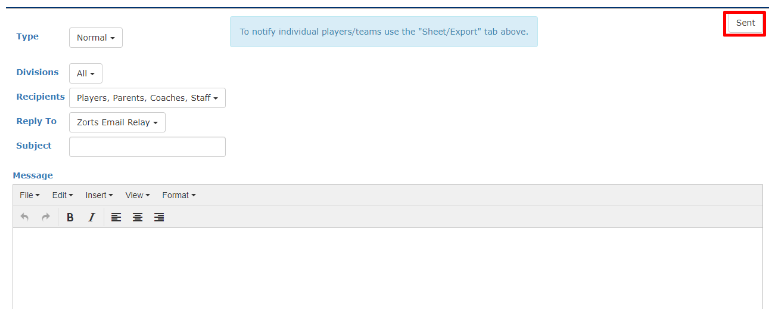
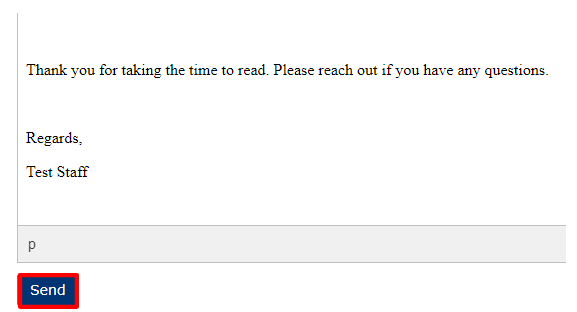
5. When you're ready to send your message, click 'Send' at the bottom of the screen.
- [Coaches](https://zorts.zortssports.com/knowledge-base/coaches?hsLang=en)
- [Participants](https://zorts.zortssports.com/knowledge-base/participants?hsLang=en)
- [Event Administrators](https://zorts.zortssports.com/knowledge-base/event-administrators?hsLang=en#main-content)
- [Payment Management](https://zorts.zortssports.com/knowledge-base/event-administrators?hsLang=en#payment-management)
- [Coaches and Event Administrators](https://zorts.zortssports.com/knowledge-base/coaches-and-event-administrators?hsLang=en)
- [STRIPE Training](https://zorts.zortssports.com/knowledge-base/stripe-training?hsLang=en)
[](http://zortssports.com)
Copyright © 2025, Zorts