---
title: Manually Record a Team Payment by Check
description: Manually Record a Team Payment by Check
---
[Skip to content](https://zorts.zortssports.com/knowledge-base/manually-record-a-team-payment-by-check#main-content)
English
Show submenu for translations

Open main navigation
Close main navigation
- English
Show submenu for translations
- [Help](https://zorts.zortssports.com/support_ticket)
[Help](https://zorts.zortssports.com/support_ticket?hsLang=en)
How can we help you?
- There are no suggestions because the search field is empty.
1. [Zorts Knowledge Base](https://zorts.zortssports.com/knowledge-base?hsLang=en)
2. [Event Administrators](https://zorts.zortssports.com/knowledge-base/event-administrators?hsLang=en)
3. [Payment Management](https://zorts.zortssports.com/knowledge-base/event-administrators?hsLang=en#payment-management)
# Manually Record a Team Payment by Check
## This article explains how Event Administrators can manually record a team payment by entering the payment as a check in Zorts. It covers adding the team to the event and associating their payment.
1. Manually Add the Team
- Open your event in Zorts.
- Manually add the team to the event.
- [How to Add Teams to Your Event](https://zorts.zortssports.com/knowledge-base/how-to-add-teams-to-your-event?hsLang=en)
- **IMPORTANT:** Be sure to include the Club Admin's email address when adding the team.
2. Open the Team Payment Area
- Navigate to **Teams \> Teams**.
- Select the **Pay** button next to the team you are recording the payment for.
- Under **Payment Method**, select **Check**.
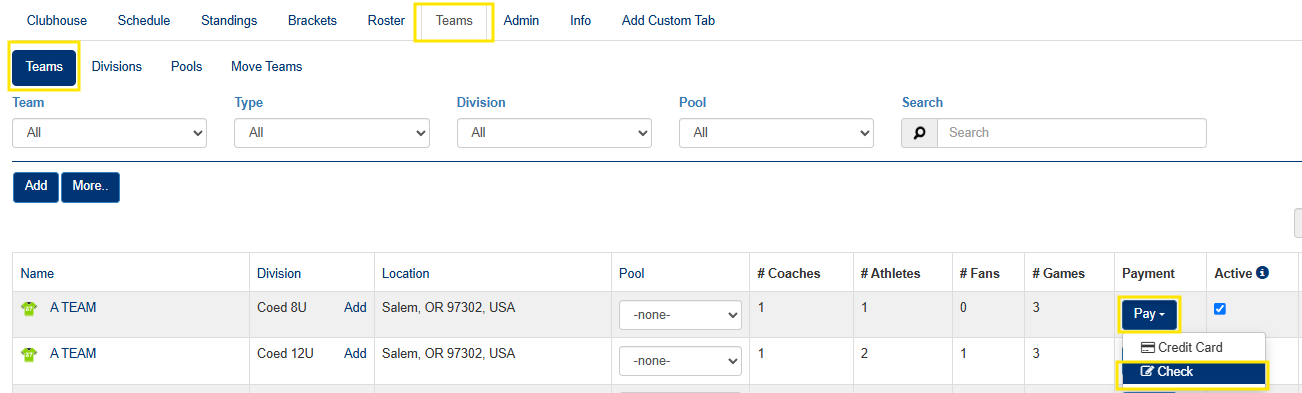
3. Enter the Payment Information
- Select the Coach that made the payment
- Choose either:
- **In Full**, or
- **Deposit** (If deposits are allowed within your event)
- Add Reference Information (Optional)
- Enter any notes, reference numbers, or the check number in the **"Check #"** field for your records.
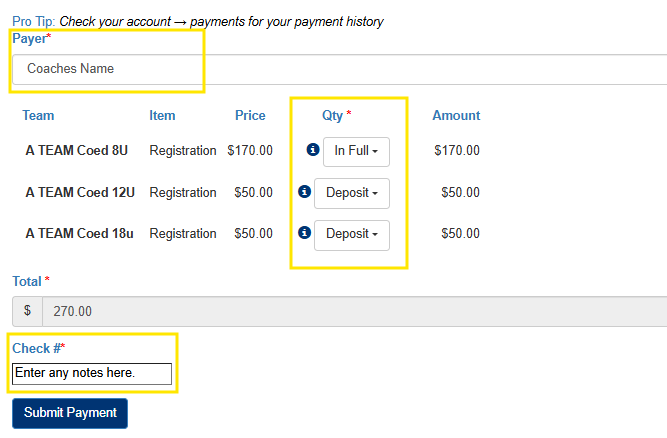
4. Save the Payment
- Submit the payment to record it within the event.
The team's payment will now be documented in Zorts as a check payment and can be referenced under the events **Admin \> Revenue** tab.
- [Coaches](https://zorts.zortssports.com/knowledge-base/coaches?hsLang=en)
- [Participants](https://zorts.zortssports.com/knowledge-base/participants?hsLang=en)
- [Event Administrators](https://zorts.zortssports.com/knowledge-base/event-administrators?hsLang=en#main-content)
- [Payment Management](https://zorts.zortssports.com/knowledge-base/event-administrators?hsLang=en#payment-management)
- [Coaches and Event Administrators](https://zorts.zortssports.com/knowledge-base/coaches-and-event-administrators?hsLang=en)
- [STRIPE Training](https://zorts.zortssports.com/knowledge-base/stripe-training?hsLang=en)
[](http://zortssports.com)
Copyright © 2025, Zorts