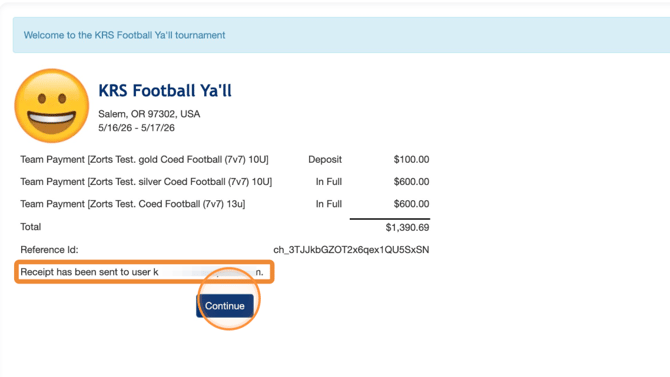
Log into your account at https://zortssports.com before following the steps below.
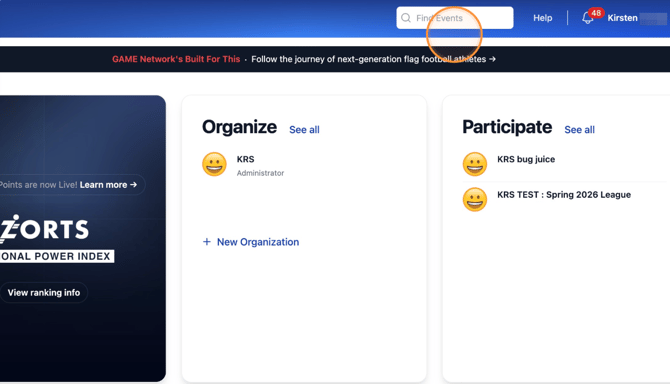
1. Click 'Find Events' and type the name of the event or the organization throwing the event
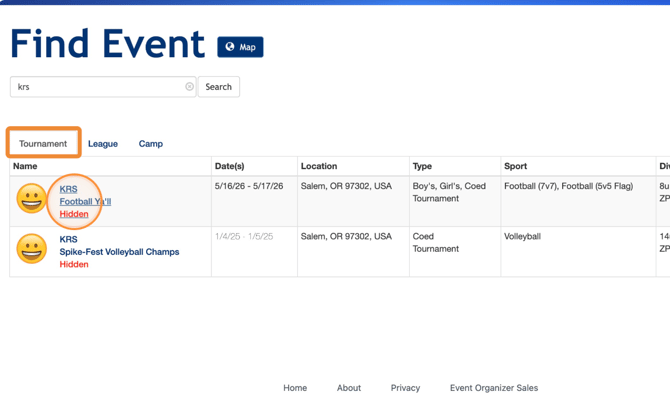
2. Select the type of event you are looking for (e.g., Tournaments), type the name of the event/organization into the search bar, and click 'Search'.
a. Click to select the event you're looking for
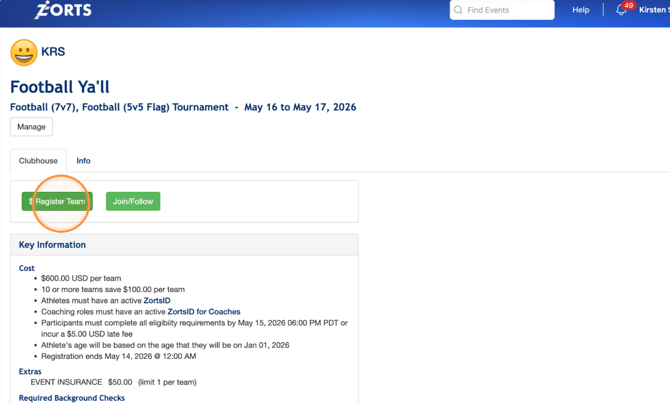
3. Click 'Register Team'
4. Enter your team name and location.
a. You may upload a team logo now, or complete this step later.
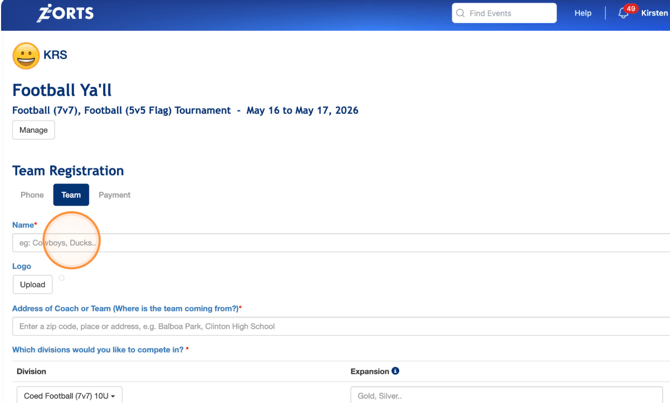
5. When entering your location, it's easiest to type a zip code. Make sure to select the correct location from the drop down.
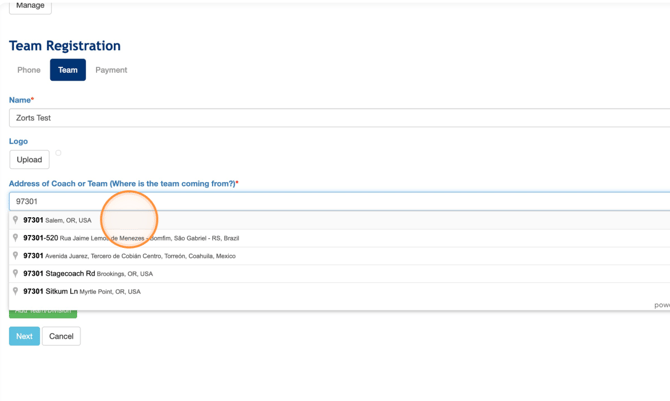
Please be sure to add all divisions that you'd like to register at this time.
6. To add more divisions, click "Add Team/Division"
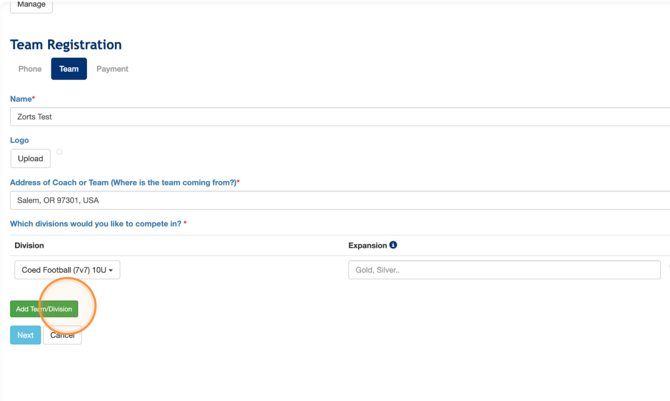
7. Click the dropdown
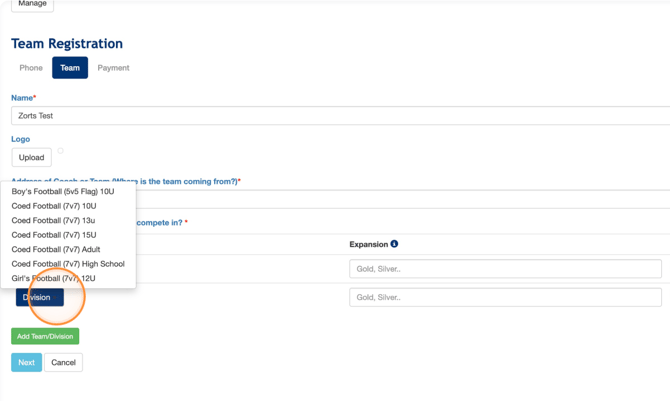
8. Select the correct division
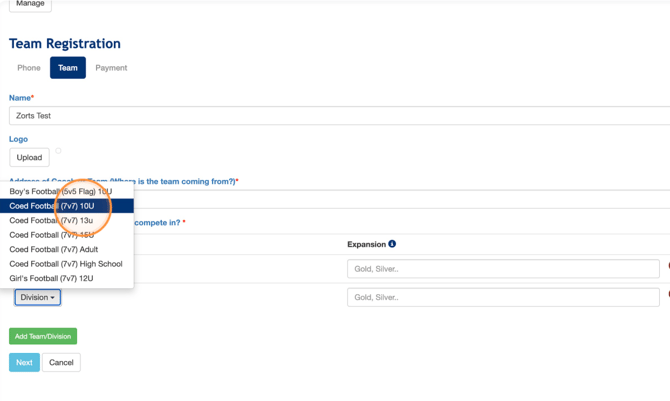
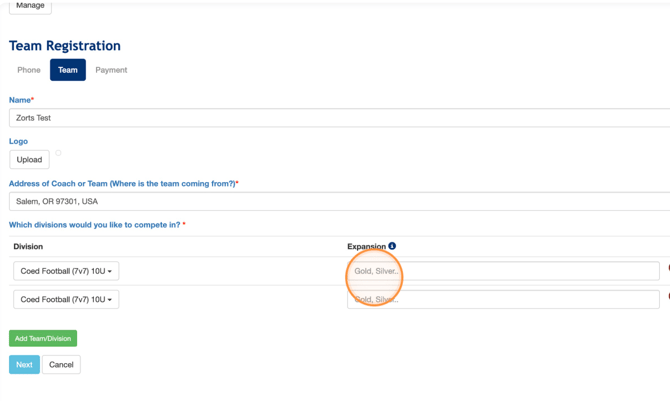
9. If you have two of the same division (e.g., two coed 10U teams), be sure to differentiate them by adding an 'Expansion' name
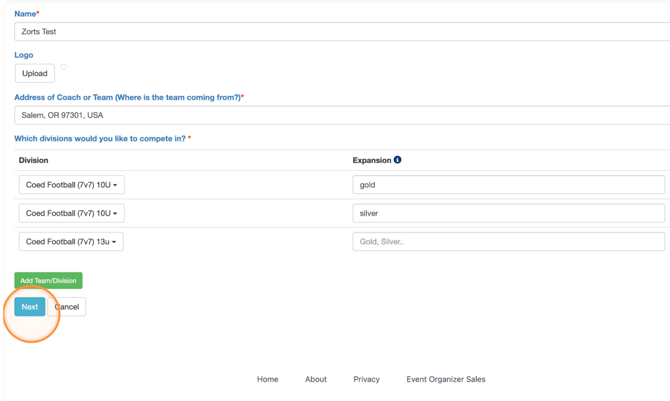
10. Once you've added all divisions, click the 'Next' button.
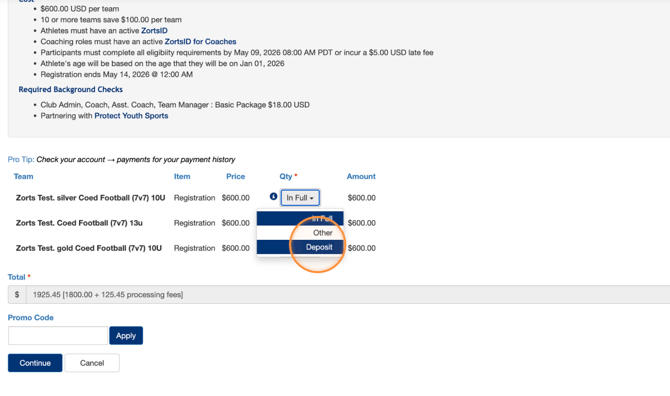
Some events will allow a deposit to be made instead of the full amount up front.
11. Click the 'Qty' drop down to select.
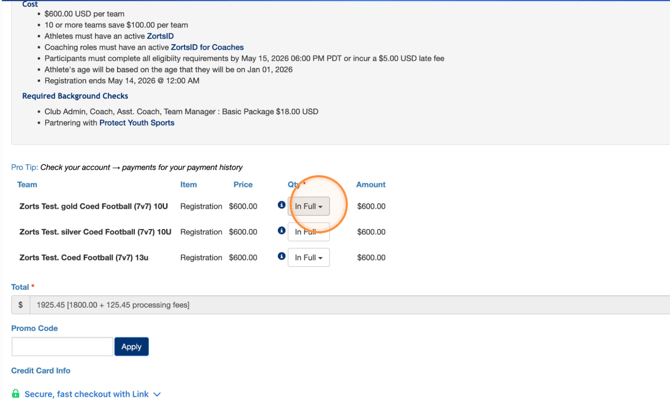
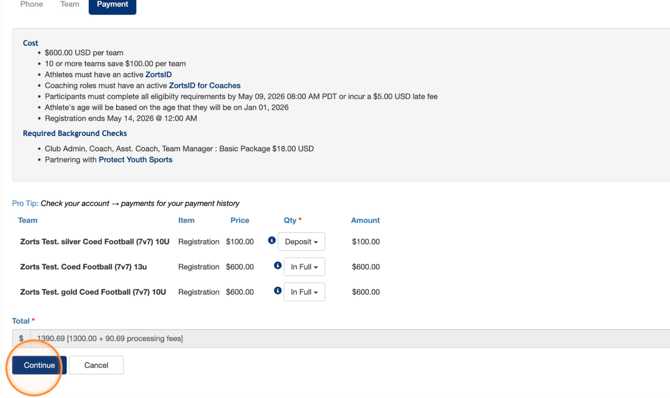
12. If you'd like to pay the deposit for one or more divisions, select 'Deposit'.
a. If this option is available, the price will change.
12. Click 'Continue'
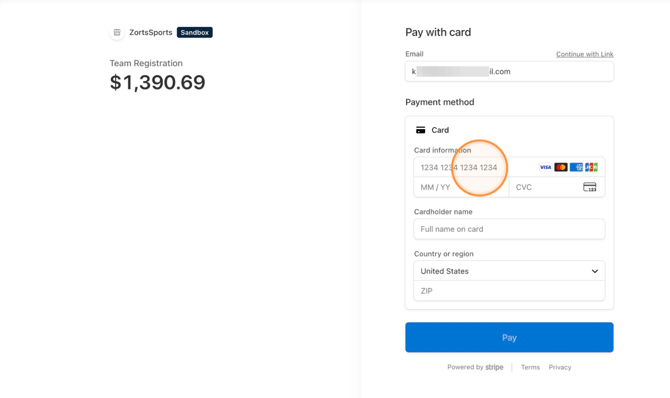
13. Enter your payment information.
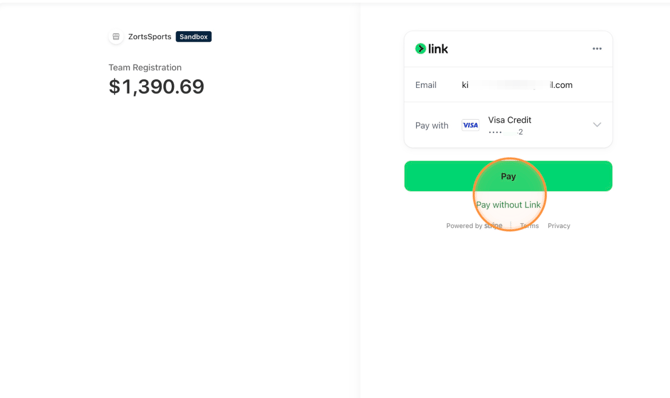
13 b. If available, you may pay with your saved "Link" information.
15. Note that a receipt has been sent to the previously entered email address.
Click "Continue"